Errors and how to fix them
What to do when WireCat Desktop shows an error: understand what happened, fix it yourself or with your AI agent, and write to us if that does not work.
Something did not work: a sync stopped, a sign-in failed, or WireCat showed a warning. Here you find out what happened and how to fix it: with the hint in the app, with your AI agent, or with our help. It often takes a couple of minutes.
On this page:
- What happened
- How to fix it
- Where the error shows
- The full error on Logs
- The error in a terminal
- Ask your agent to help
- Write to us
- Check that it is fixed
- Error code reference
What happened
Almost every error in WireCat is one of four cases:
- The service asked to wait or did not answer. Telegram, email or Bitrix24 limit how often they can be asked, are sometimes down, or the internet dropped. This usually passes by itself.
- The sign-in no longer works. The session expired, the password changed, or access was revoked in the service.
- A setting is missing. WireCat does not know what to do until you choose, for example, whose deals to copy.
- Something broke on our side. Then only we can fix it, and your report helps us.
The hint under the error says in plain words which case it is.
How to fix it
- Do what the hint says. Click Sync again, sign in again or wait. Often that is enough.
- Read the error's full text on Logs. It says what exactly happened and which command to run.
- Ask your AI agent, for example Claude Code. It reads the logs itself and suggests a fix.
- Write to us with Report a problem in the app, or in the support chat.
Each way is described in detail below.
Where the error shows
Sync and sign-in errors show on the Tools page. Your services are connected there: Telegram, email, Bitrix24 and others, each with its own card. The error shows on the card of the account that had the problem. Its first line says what happened and what to do.
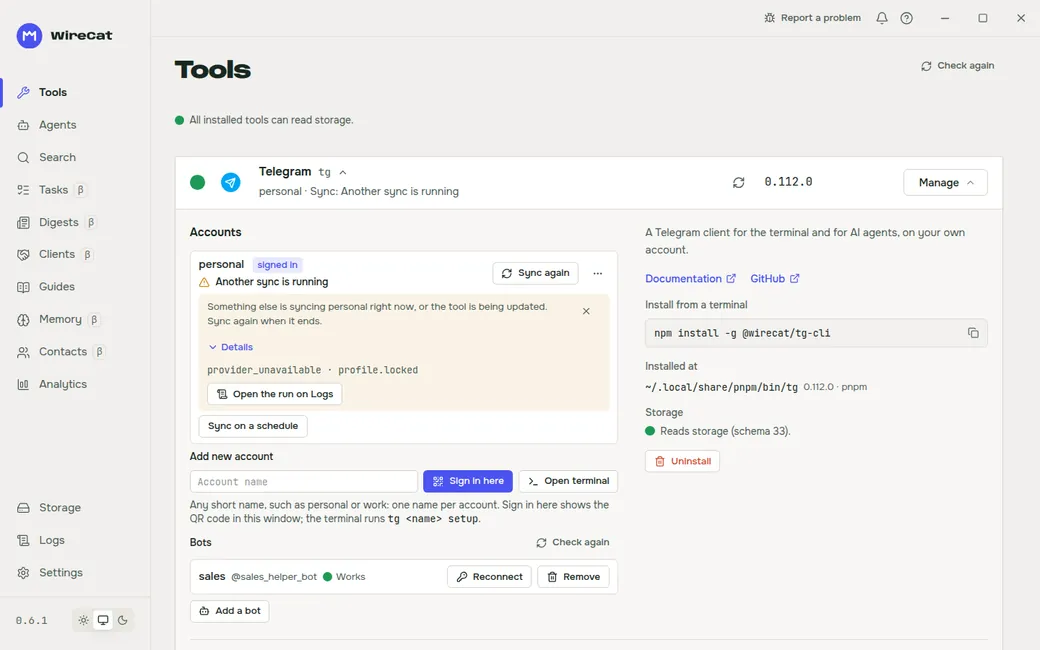
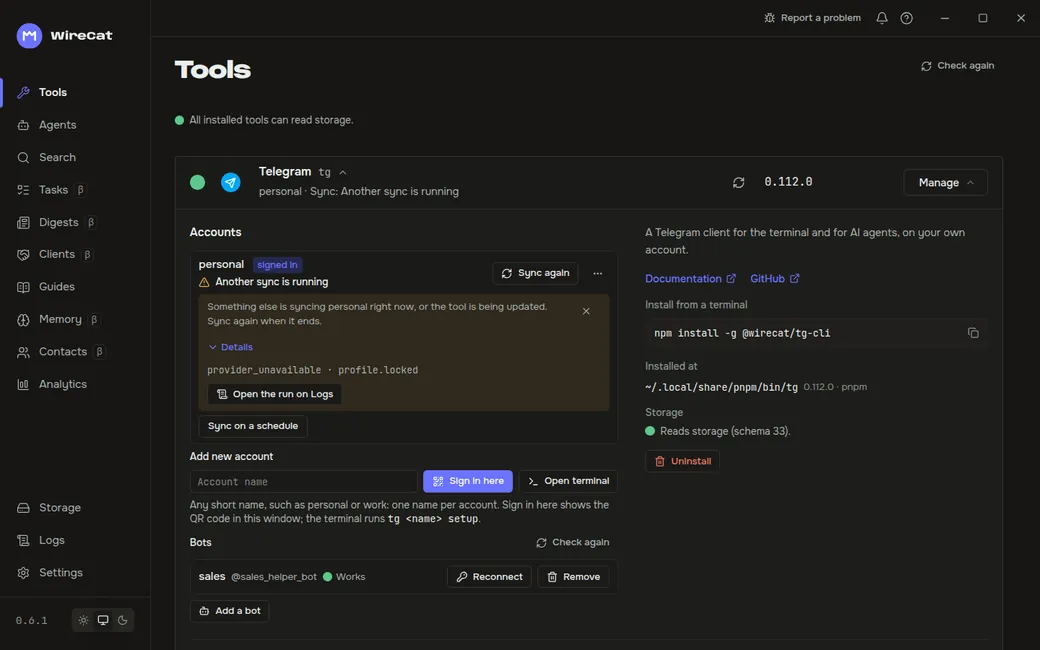
Click Details to see the error code, for example provider_unavailable · profile.locked, and the Open the run on
Logs button. Your agent or we will need the code. What each code means is in the
reference at the end of the page.
The card leaves out the error's full text. It can name chats and people, so the app shows it only on Logs.
The full error on Logs
Each time WireCat does something with a service, for example syncs it, Logs records it as a run. Open the run on Logs opens the failed run on the Logs page. What went wrong shows the error's full text, the request it happened on and what the service answered.
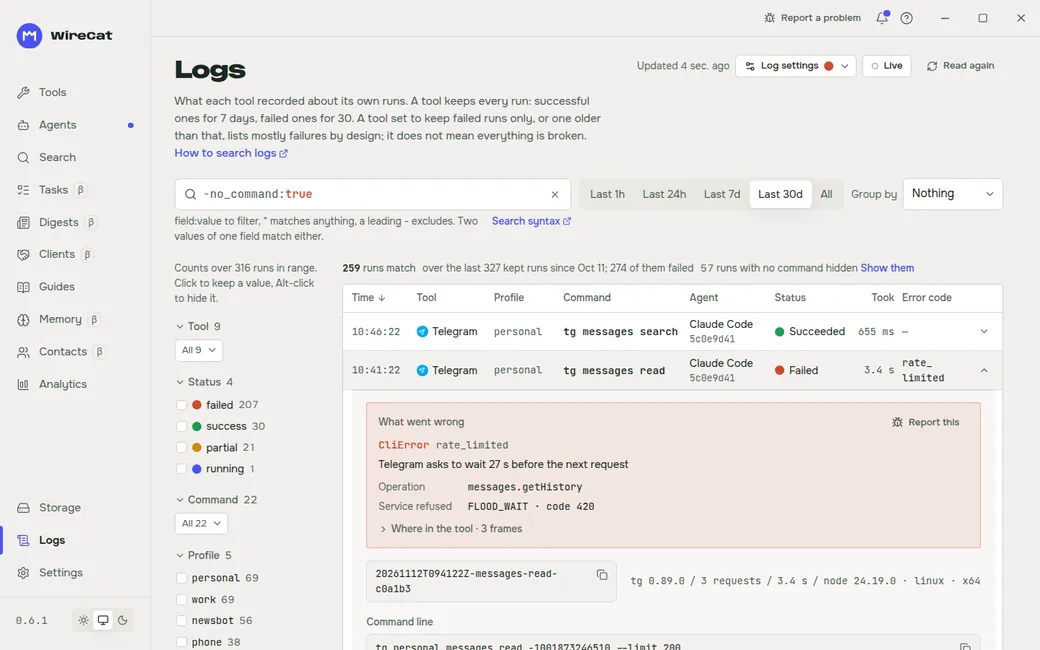
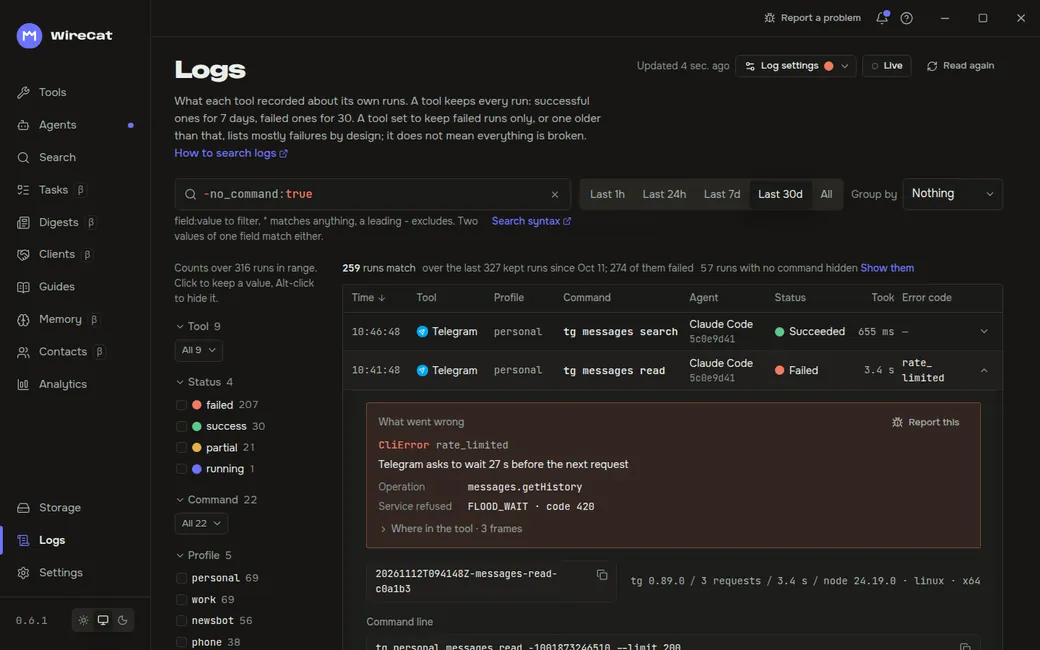
The error's text usually says what to do, sometimes with a ready command. Copy JSON copies the whole run record: give it to your agent or attach it to a report. Personal data in it is already hidden. How to search Logs is on the Logs page.
The error in a terminal
If you use a terminal, or the app does not open, you can see the full error there too. Open terminal on the card opens a terminal where the right program is ready to run.
Repeat what failed. For a sync that is sync, for example Bitrix24 with the account Anna:
b24 Anna syncOr read the records of earlier runs:
b24 Anna runs list status:failed --limit 5
b24 Anna runs show 20261112T095912Z-sync-54a1a4 --problems
runs list shows the latest failed runs, and runs show one run with all its steps. Put your own service and account
in place of b24 and Anna, for example tg personal runs list or mail work runs list. Every Logs command is in
Logs in a terminal.
doctor checks everything at once, for example tg personal doctor or memo doctor. It checks the sign-in, the
settings and the files, and says what to fix.
Ask your agent to help
Your AI agent, for example Claude Code or Codex, can read WireCat's logs itself and often finds the cause faster. Give it:
- the error code from the card, for example
configuration_error · config.invalid, and the service and account; - the run record copied with Copy JSON, if you have it.
You can write:
WireCat: the Bitrix24 sync for the account Anna fails
with configuration_error · config.invalid. Find the cause in b24's logs
(b24 Anna runs list status:failed) and tell me what to do.
Do not give your agent sign-in codes, passwords or keys. It does not need them to look into an error.
Write to us
If your agent could not help, click Report a problem at the top of the window, or Report this next to the error. Describe what you did, what happened and what you expected.
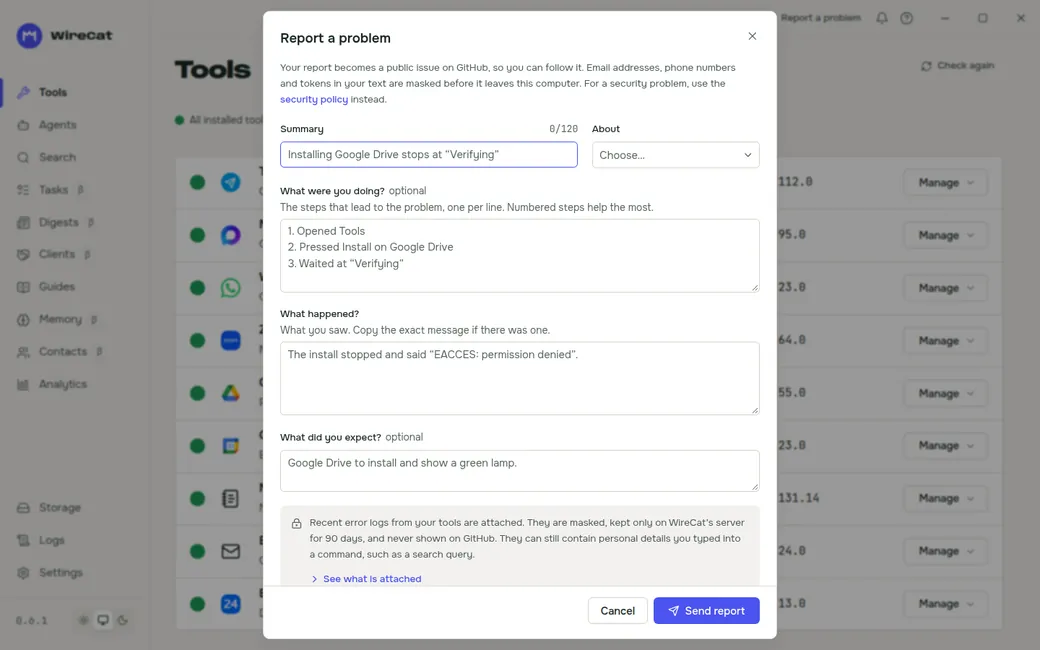
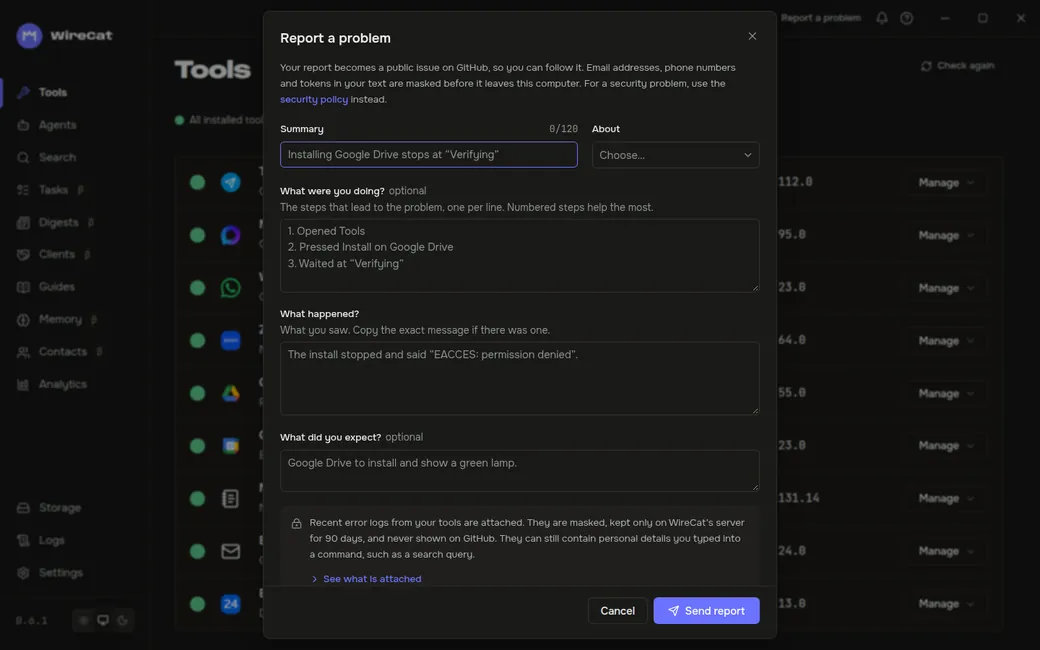
- The report becomes a public issue on GitHub, so you can follow it. Email addresses, phone numbers and tokens in the text are hidden on your computer first.
- The latest error records from Logs go with the report. They are never published: they stay on WireCat's server for 90 days and are then deleted. More in the privacy policy.
- Nothing is sent until you click Send report.
Or write in the Telegram support chat, topic Help, or on Discord, channel #help. Copy the example and fill in your own:
What I did: connected Bitrix24, clicked Sync again
Expected: deals to show on the Clients page
Got: configuration_error · config.invalid, screenshot below
Versions: the ? button, About WireCat, Copy version details
System: Windows 11
My agent said: no CRM users are chosen
Do not send sign-in codes, passwords, keys or other people's messages.
Check that it is fixed
Repeat what failed, for example click Sync again on the card. It is fixed when the error is gone from the card and the new run on Logs has the status Succeeded. If the error comes back, write to us with its code and the run record from Logs.
Error code reference
The code under Details has two parts, for example provider_unavailable · profile.locked. The code
(provider_unavailable) says what kind of error it is, and it is the same in every WireCat program. The reason
(profile.locked) says more exactly what happened: here, another run is using the account right now.
The reasons config.invalid, input.invalid, auth.failed, access.denied and item.not-found are general ones.
They are used when there is no exact reason, and they only say what kind of error it is. What really happened is in the
error's full text on Logs.
| Code | What it means | What to do | Exit code |
|---|---|---|---|
validation_error | The command or its input is wrong | Read the error's text, it names what is wrong | 2 |
configuration_error | A setting is missing, or the settings file is broken | The error's text names the command that fixes it. doctor checks the settings | 3 |
authentication_error | The sign-in no longer works: the session expired or the key was revoked | Sign in again on the account's card | 4 |
permission_error | The account may not do this, or you denied it to agents | Check the account's rights in the service, or the permissions on the service's page in WireCat | 5 |
not_found | No such chat, record or profile | Check the name or id, and the account | 6 |
confirmation_required | The command changes something and waits for you to confirm | Confirm if you agree with the change | 7 |
rate_limited | The service asks to wait | Wait. A sync goes on by itself | 8 |
timeout | The service did not answer in time | Try again later | 9 |
network_error | No connection to the service | Check the internet, VPN or proxy | 10 |
provider_error | The service answered with an error | Try again. If it keeps happening, write to us | 11 |
provider_unavailable | The service or the account is not available right now, for example another sync is running | Wait and click Sync again | 12 |
invalid_response | The service answered in an unexpected way | Write to us | 13 |
outcome_unknown | It is not known whether the change went through | Check the result in the service first, and only then try again, so nothing is sent twice | 14 |
conflict | The current state is in the way, for example the item already exists | Read the error's text | 15 |
cancelled | The run was stopped | Nothing, if you stopped it | 130 |
The exit code matters in a terminal and in scripts: the program exits with that number.
Search logs
Find why a tool failed, how often it happens and which command, profile or error it involves, with filters, groups and the record of each run.
Tailscale Funnel for MCP
Give a tool's MCP server a fixed public https address, so ChatGPT, Claude and other browser apps can use it. Step by step for macOS, Windows and Linux.