Clients in WireCat Desktop
Your CRM deals and leads as a table or as a board by stage. Move a deal to another stage, map each CRM's stages onto yours, and choose whose deals are copied.
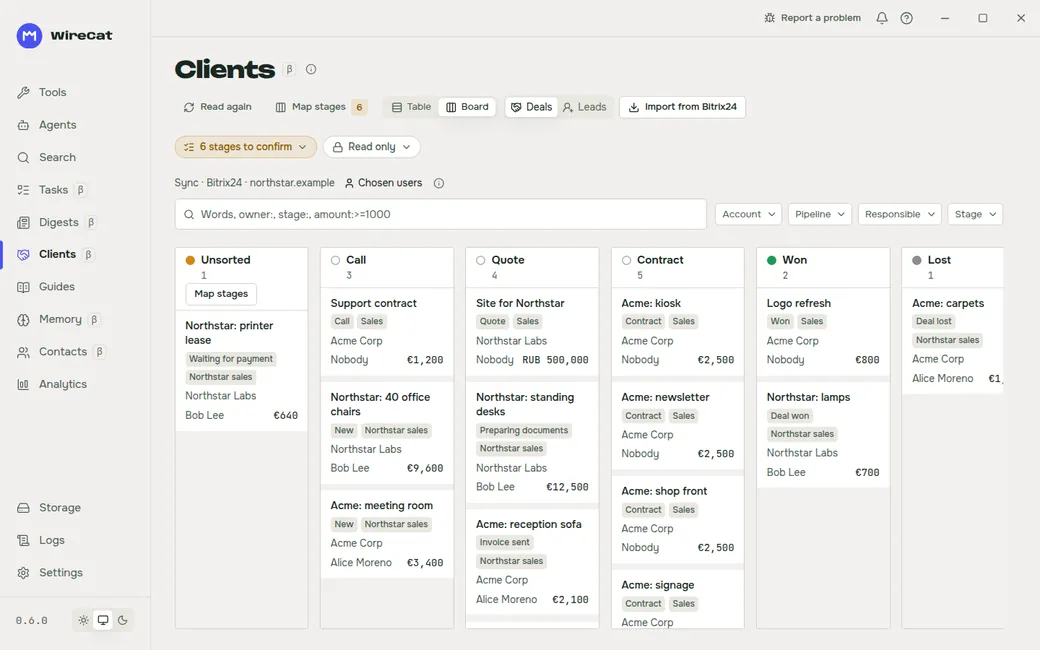
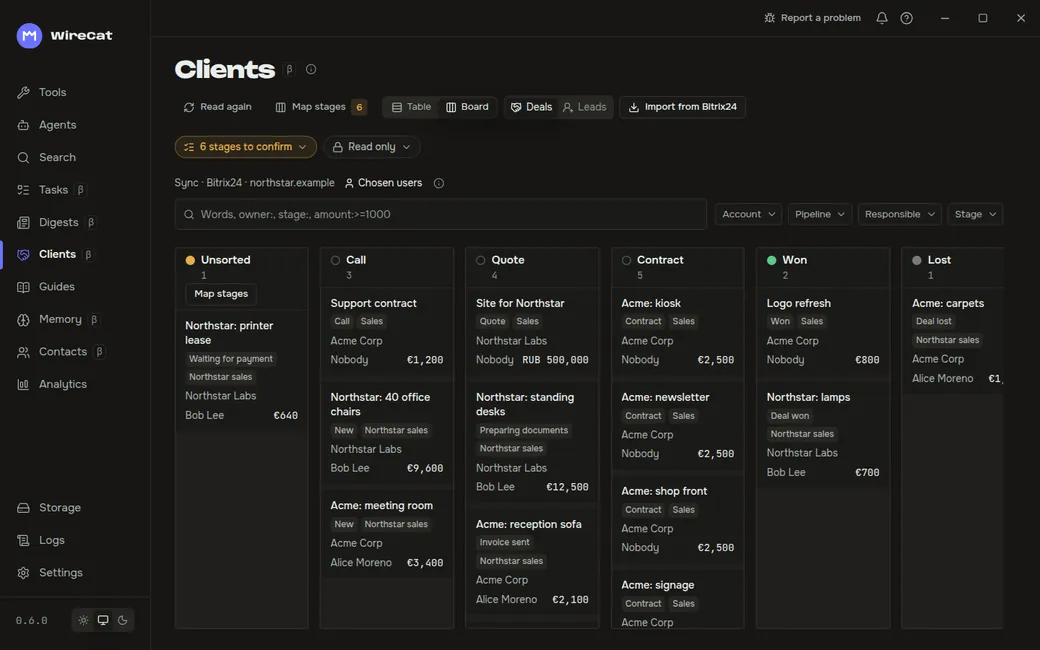
The Clients page in WireCat Desktop shows the deals and leads from your CRM, today Bitrix24, as a table or as a board by stage. Use it to see where each deal stands and to move a deal to its next stage without opening the CRM. A move here goes to Bitrix24 too. Your agents read the same deals, so they can answer "what is open with Acme?" from the same picture. The page needs Memo, and moving a card also needs the Bitrix24 tool.
Clients is marked beta: you see a β beside its name. The section is new and lightly tested.
Before you start
- On the Tools page, install Bitrix24 and sign in. Sign-in asks for a webhook address from your portal.
- Choose whose deals are copied. A sync copies only the deals and leads of the CRM users you choose, and the clients on them, never the whole portal. Until you choose, a sync copies nothing and says how. Whose deals are copied shows the commands.
- On the Clients page, click Import from Bitrix24. With more than one Bitrix24 profile, Import from a CRM asks which.
The line Sync under the buttons names the CRM account and Chosen users. Its ⓘ repeats what is copied. If an account is set to copy everyone's deals, the page says that its sync stops and offers Only mine.
Table or board
View switches between Table and Board, and Deals and Leads switch what you see. The search field and the filters for account, pipeline, responsible person and stage work in both views.
- Table: Title, Stage, Amount, Pipeline, Contact and Updated, with a pager below.
- Board: one column per stage. A long column shows its first cards and pages the rest. The Unsorted column holds cards that have no stage yet.
Move a deal to another stage
Do it in one of three places:
- On the board, drag the card to another column. With the keyboard, select the card, press Space, move it with the arrow keys and press Space again; Escape cancels.
- In the table, choose a stage in the row's Stage list.
- Open the deal and choose its stage in the card.
If one column holds two stages of the deal's pipeline, a dialog asks which one. The move is sent to Bitrix24. Without the Bitrix24 tool, or with a version too old to move deals, the page is Read only, and the chip says what to install or update.
Map stages
Every CRM names its stages its own way. Map stages puts each CRM stage under one of your stages, so deals from every CRM line up on one board. The dialog opens by itself the first time a CRM brings stages you have not mapped yet.
- Each CRM stage that waits sits in the Unmapped column, with a Suggested stage. Click the tick to accept the suggestion, choose another stage from its menu, or drag it to a column.
- Accept suggestions accepts every suggestion at once.
- You can add, rename, move and remove your own stages.
Until you confirm it, a deal stands under the suggested stage, marked Not confirmed.
Notices
Notices fold into one line of chips above the board, such as "6 stages to confirm" or Read only. Click a chip to read its notice. The stages chip has Accept all, which confirms every suggested stage, and Confirm stages, which opens the dialog.
Next
Ask your agent about a client: it reads the same deals and the people on them. Clients, colleagues and deals has requests to try.
Contacts in WireCat Desktop
See who is who across Telegram, MAX, WhatsApp, mail, meetings and Bitrix24, join the accounts of one person, undo a wrong join and answer your agents' doubts.
Digests in WireCat Desktop
Get one short summary of your chats, mail, meetings and tasks every morning or every week, in the app, in Telegram or by mail, with a cost limit you set.