Memory in WireCat Desktop
Decide what your agents may take as true about you and the people around you, see where each fact came from, and add a note, a link, a file or a picture to memory yourself.
Agents connected to WireCat save what they learn, such as "Kai prefers Friday calls", with the messages that show it. The Memory page in WireCat Desktop is where you decide what counts. Nothing an agent suggests is used as true until you approve it. You can also add to memory yourself: paste a note, give a link, a file or a picture, and keep the facts you want. Memo keeps the memory; without it the page says so and offers to install it.
Memory is marked beta: you see a β beside its name. The section is new and lightly tested.
How it works
A band at the top of the page shows the three steps:
- An agent suggests, from a chat, an email, a document or a meeting.
- You check it: see where it came from, edit it if needed, then approve or reject it.
- Agents use it: what you approved, agents take as true when they answer you.
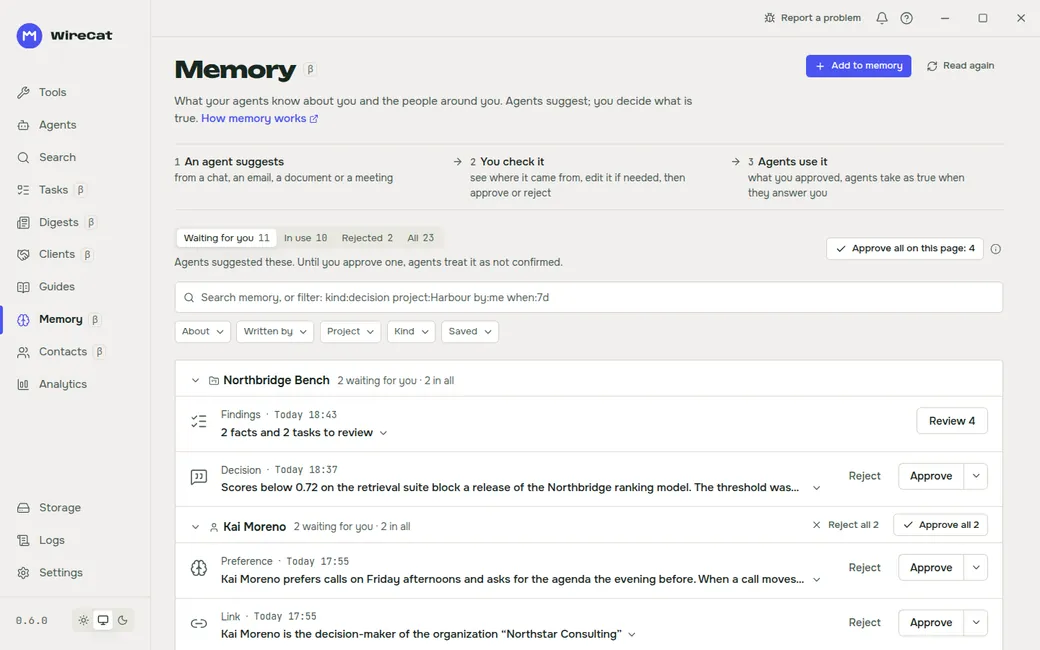
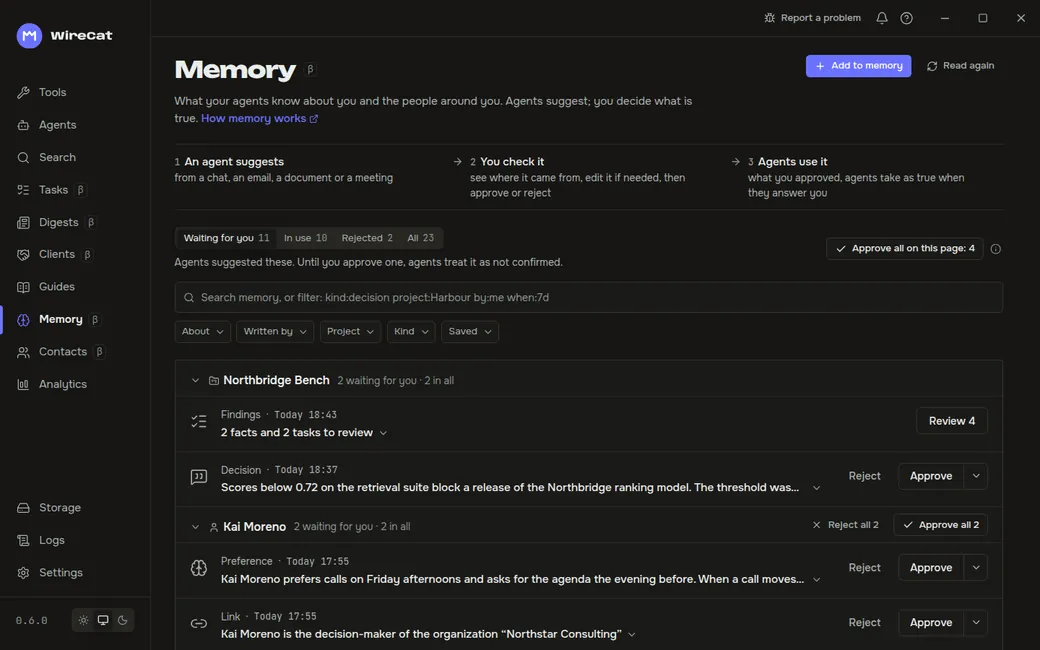
Review what waits for you
The tabs are Waiting for you, In use, Rejected and All. Each row reads as a sentence, with a kind word (Preference, Decision, Link…) and its status. Rows are grouped by who or what they are about, and each group has Approve all and Reject all.
Click a row to open it. It shows What agents will know, Where it came from, the sources it rests on, and what each choice changes:
- Approve: agents take it as true when they answer you.
- Reject: agents do not use it. It moves to Rejected, where you can still see it.
- Edit: change the text, its kind or who it is about, then Save or Save and approve. You can also click the row's text to edit it.
An agent's findings come as one row, for example the tasks, invoices, orders and new contacts it found in your mail. Review opens the list. Each finding shows its kind, why the agent thinks so, and the email it read, which you can open. Approve keeps only the findings you ticked.
Take back a decision
On a row in use, More has the undo that fits it: Reject, No longer true or Undo approval. Undo approval puts a fact back into Waiting for you. A fact you wrote yourself has Edit and Erase… instead.
Erase… removes the row from this computer, and agents stop finding it. The messages, notes and meetings it rests on stay, and a backup made before still holds it.
When the source of a row in use changes or goes away, the row is marked, for example "Source changed", and shows the source when it was saved and now. Answer with Still true, Edit or No longer true.
Links between people, companies and documents
A link says how two things relate, such as "Kai Moreno is the decision-maker of Northstar Consulting". Its role comes from a list in your language; Add a role adds your own. A link to a document shows the document's title, folder, last change and Open. A link that came from a source, such as your CRM, is marked Reported, and one that is over is marked Ended. Remove link makes agents stop using it; the people and the document stay.
Memory lists only what you can decide here, your own links first. Whether two accounts are one person is decided on the Contacts page.
Add to memory
Click Add to memory at the top of the page.
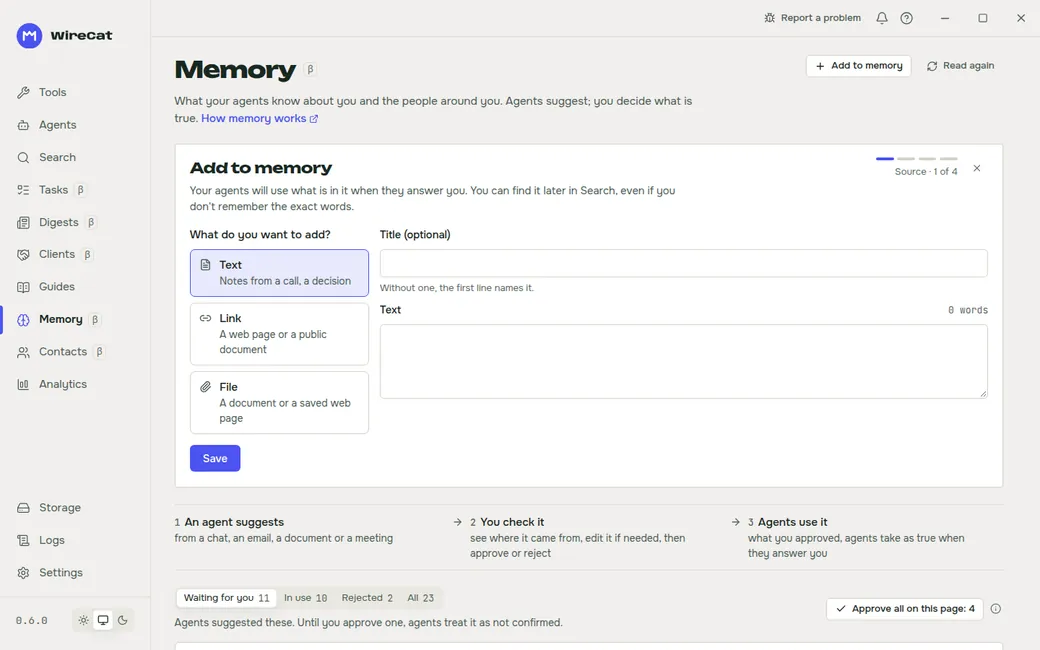
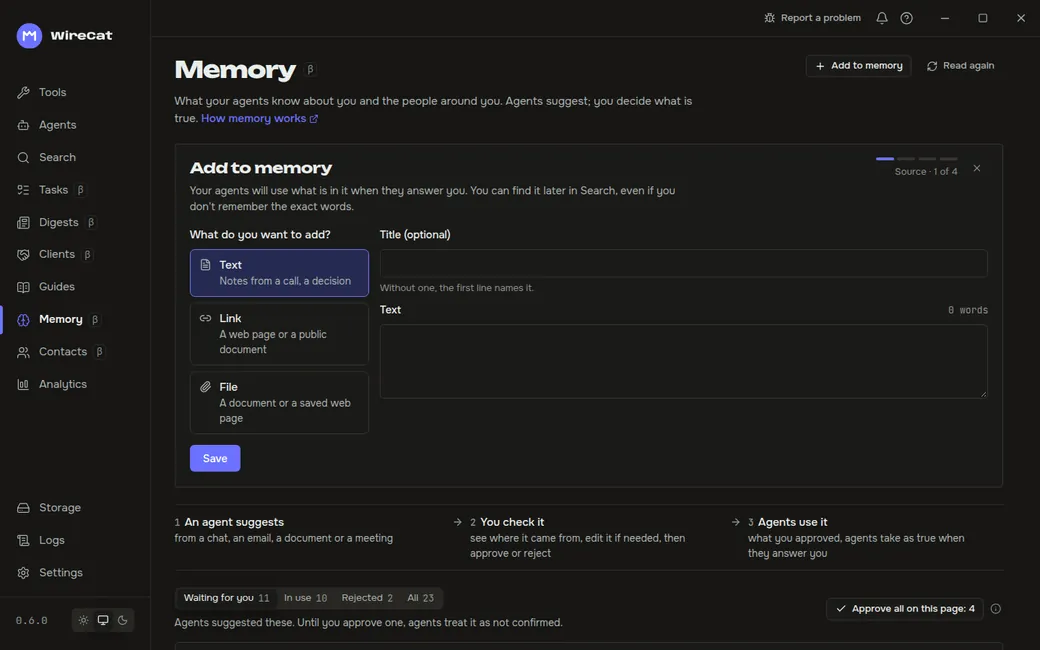
- Choose Text (paste a note, with an optional title), Link (a web page or a public document) or File (PDF, Word, text, a saved web page or a picture, up to 50 MB). Click Save. WireCat keeps it as a document you can search, even if you do not remember its exact words.
- Suggest facts reads it and lists facts it found, and the people and organizations named in it. Save without facts stops here.
- Tick the facts to keep, or Tick all, and click Keep. They go into memory as yours.
A picture is searchable by its contents only when an AI model reads it. Set one in AI model and better search; otherwise the picture is kept by its name. Before you save, the panel says which model reads the picture and where it is sent.
Next
Ask your agent something it should now know, such as "When does Kai prefer calls?". It answers from what you approved.
Digests in WireCat Desktop
Get one short summary of your chats, mail, meetings and tasks every morning or every week, in the app, in Telegram or by mail, with a cost limit you set.
AI model and better search
Set one AI model and key for WireCat Desktop, choose who reads your sources for facts, and turn on the two search helpers that send data out only after you agree.