Add your own tool to WireCat Desktop
Install a tool WireCat does not make, from the community list or by its npm name, read the review before it installs, and learn what a tool needs so WireCat can add it.
WireCat is not only WireCat's own tools any more. Anyone can build a command-line tool on WireCat's libraries, for a CRM, a helpdesk or an internal system, and add it to WireCat Desktop. The app then installs it, signs it in, syncs it and gives it to your AI agents like any other tool. This page has two parts. The first is for you, when you add such a tool: how to turn it on, what the review screen shows before anything installs, and what the risk is. The second is for a tool's author: what the tool needs so WireCat can add it and show it well.
Three kinds of tool
A tool you add can be your own, a colleague's, or one from a private repository. The Tools page can show three kinds:
| Kind | Where it comes from | Badge |
|---|---|---|
| WireCat's own | Built into the app | none |
| Community | A list that WireCat reviews and signs | Community |
| Your own | Added by you, by its npm name | Not verified |
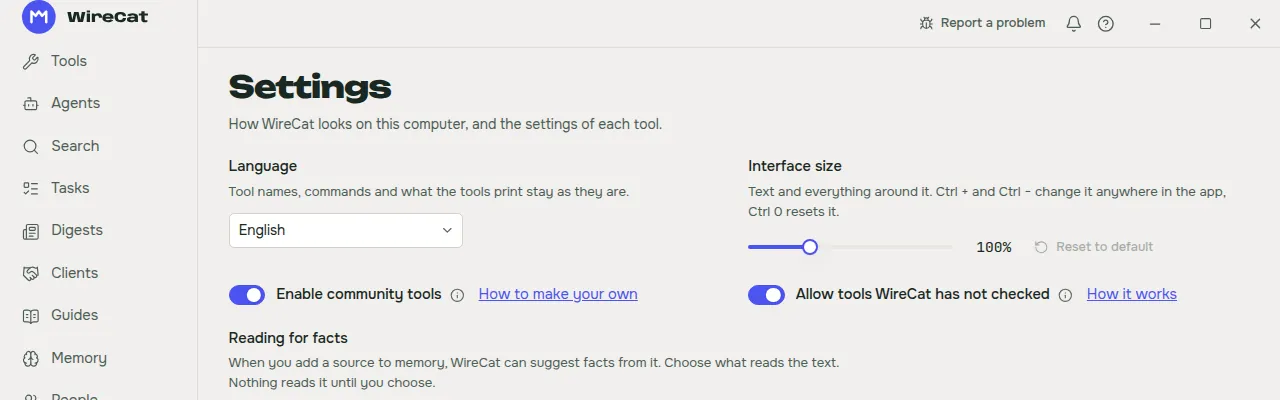
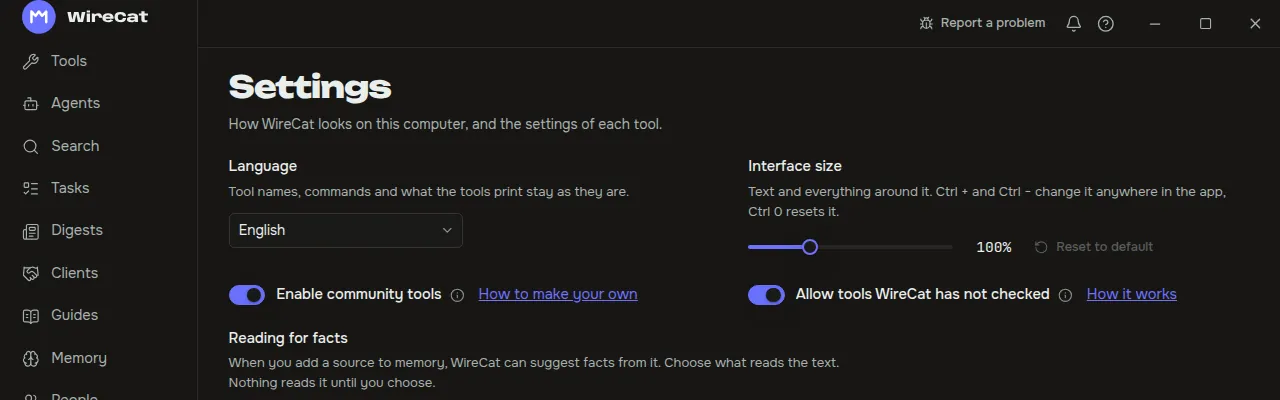
The second and third kinds are off by default. Settings has one switch for each, side by side on a wide window: Enable community tools and Allow tools WireCat has not checked. Enable community tools takes effect at the next start, and the page offers Restart now. Allow tools WireCat has not checked takes effect at once.
The risk, plainly
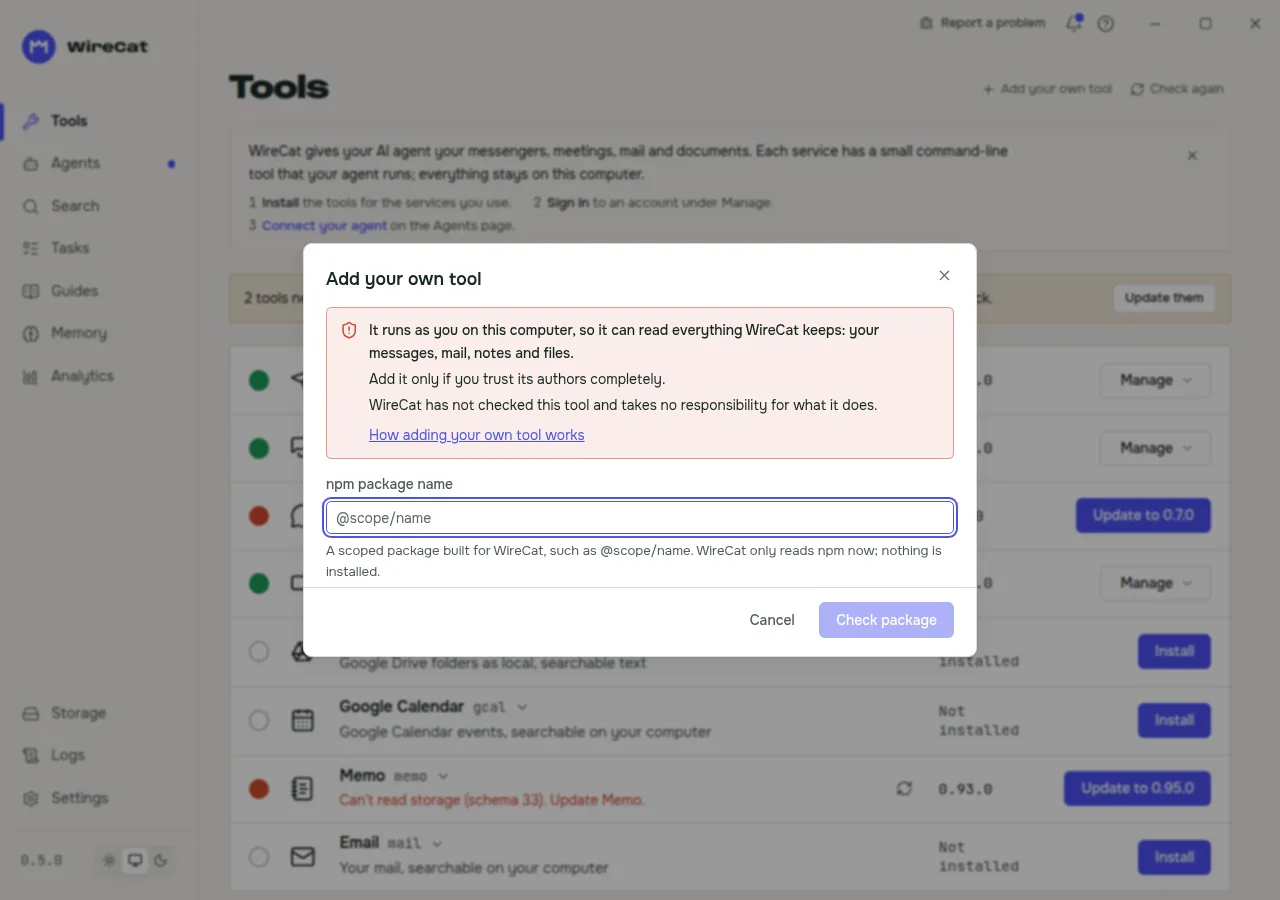
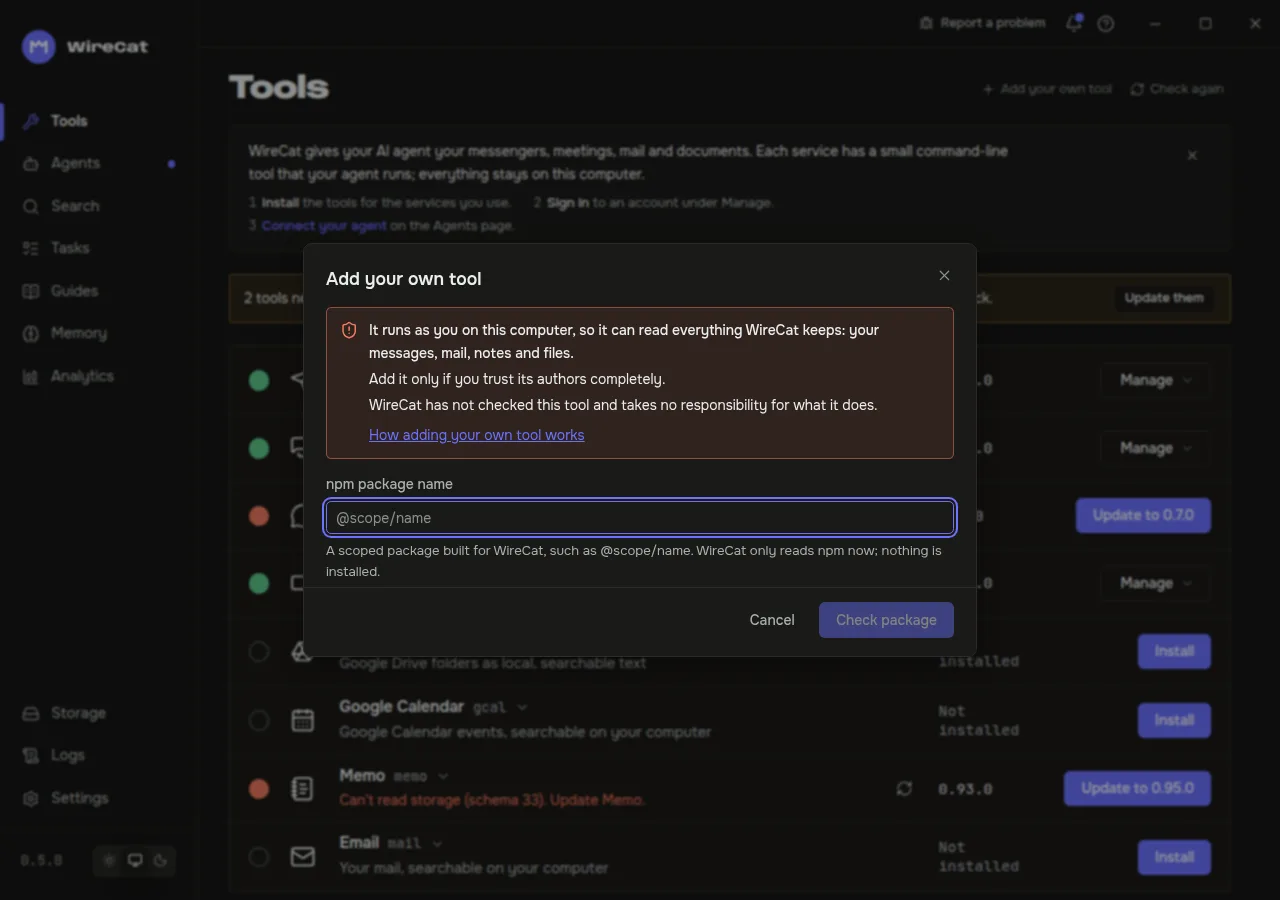
A tool you add is a program that runs as you on this computer. It can read everything WireCat keeps: your messages, mail, notes and files. WireCat has not checked it, and the review cannot prove what it does. The review shows facts that help you decide: who published it, where npm built it, what it says it does, and the things worth a second look. Add a tool only if you trust its authors completely. WireCat takes no responsibility for what such a tool does.
Community tools
Turn on Enable community tools. The app then reads the list that WireCat signs and shows its tools with the Community badge. Install one with its Install button, like any tool. The app installs a release only when npm built it from the tool's own repository. The review checks how a tool is built and released, not everything it does. No community tool is listed yet. Makers ask for a listing as List your tool in WireCat says.
The signed list is valid for 30 days, and the app fetches a new one every day. If it cannot, a notice at the top of the app says when the list runs out, once seven days or fewer are left. When the list is out of date, the notice says "The list of community tools is out of date, so community tools cannot be installed or updated. Installed ones keep working." Until a new list arrives, the row of a community tool says why its Install or Update does not work. Uninstall still works. Your own tools and WireCat's own tools do not use the list. The notice shows only while community tools are on.
Add a tool by its npm name
- In Settings, turn on Allow tools WireCat has not checked. A warning opens: a tool you add this way runs as you on this computer, so it can read everything WireCat keeps, add only tools whose authors you trust completely, and WireCat takes no responsibility for what they do. Confirm it with Allow.
- On the Tools page, click Add your own tool, at the top next to Check again. Type the npm name, such as
@scope/name, and click Check package. WireCat only reads npm. Nothing is installed, and no code of the package runs. - Read the review screen (below), then click Add.
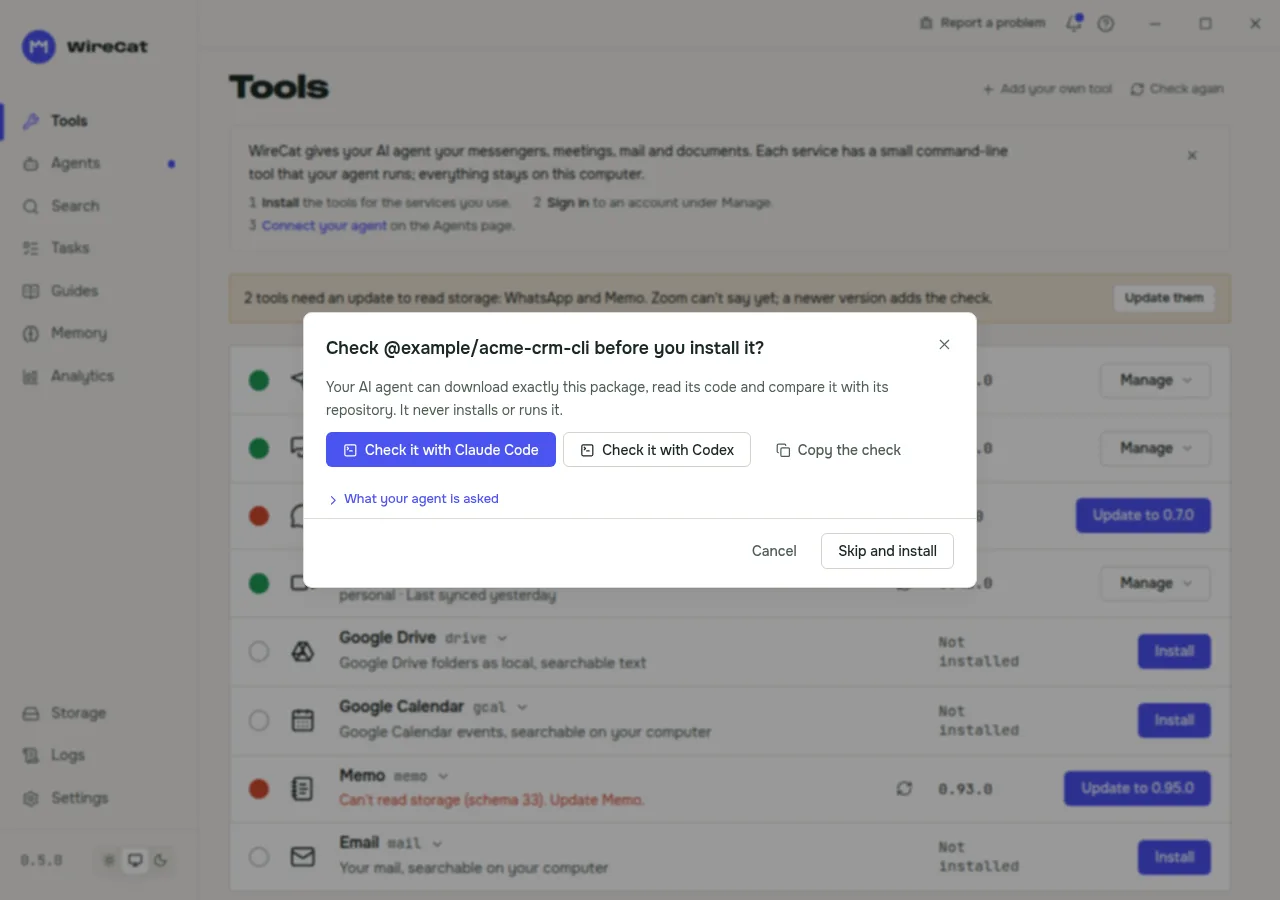
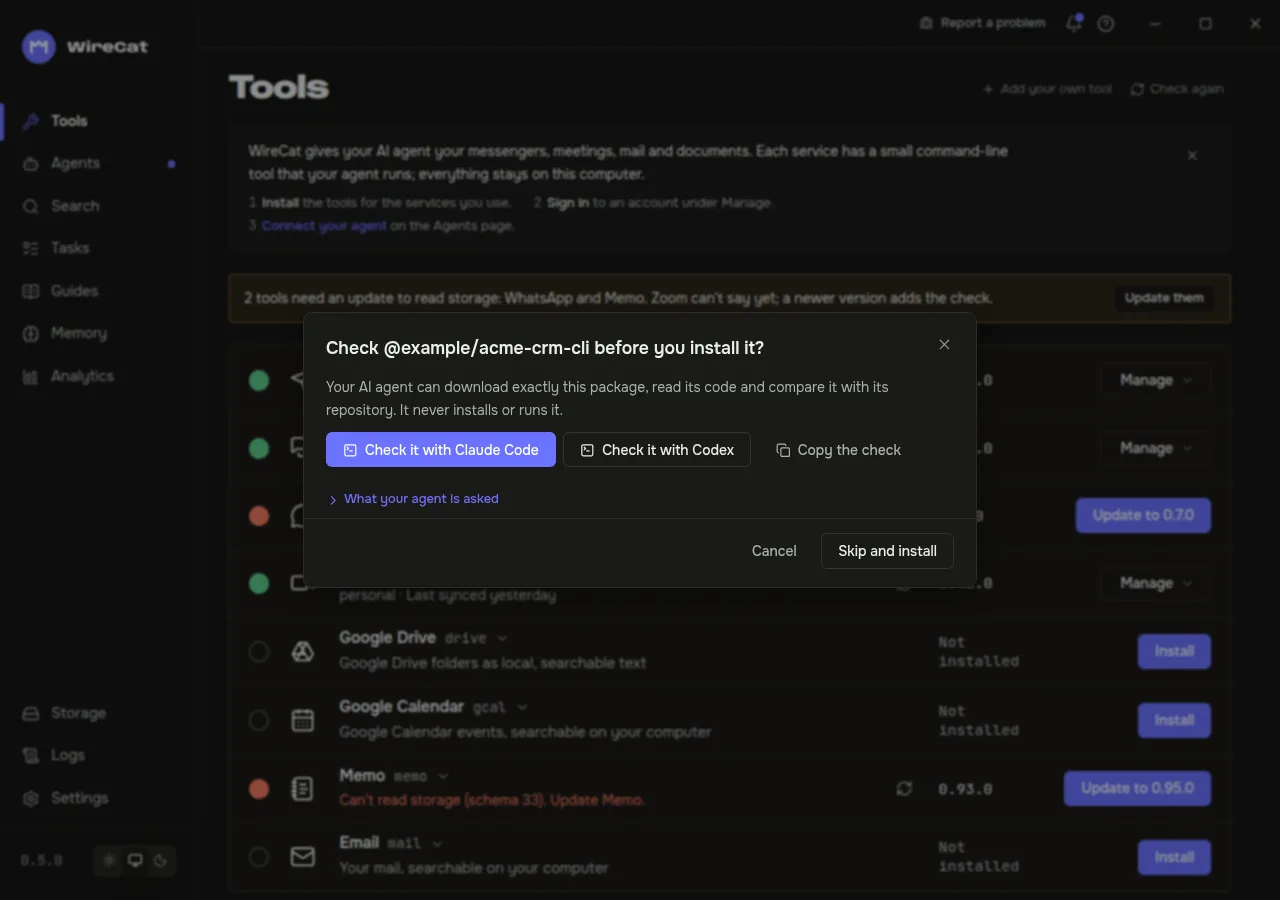
- WireCat asks "Check
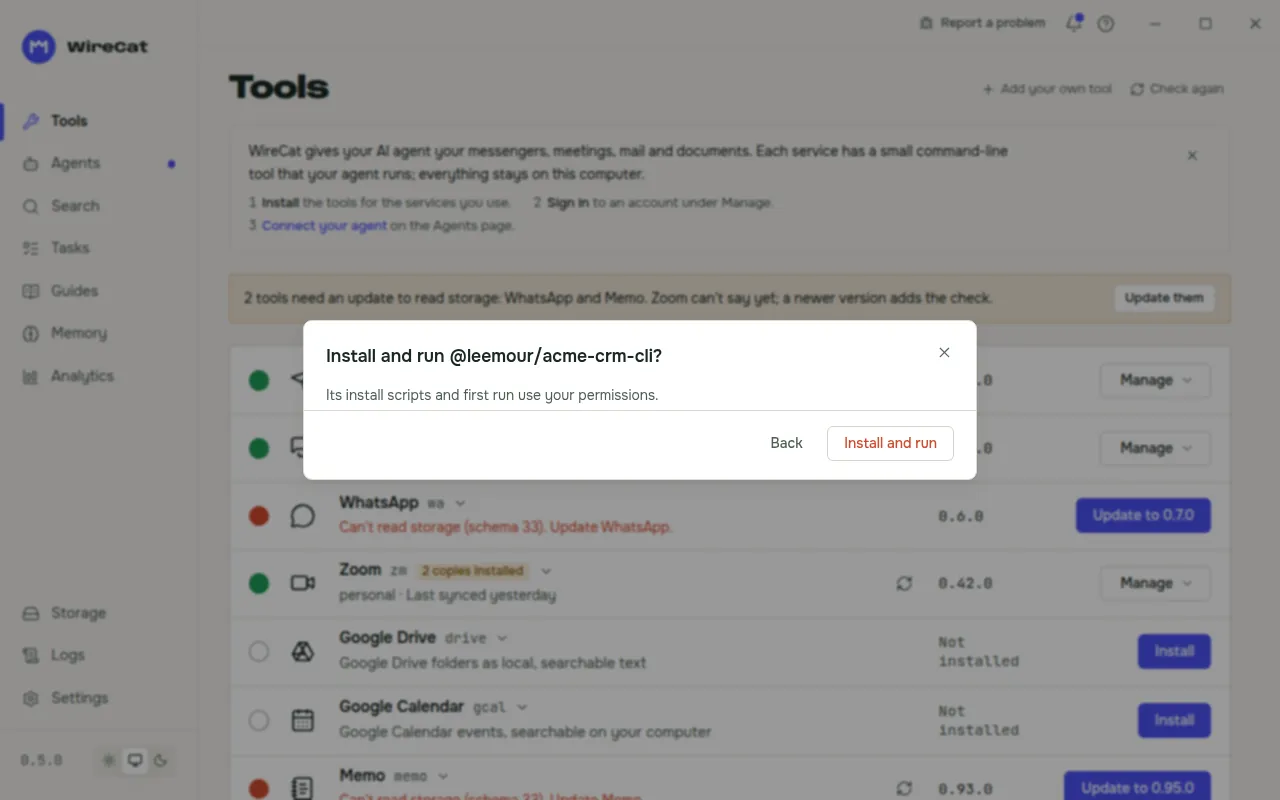
@scope/namebefore you install it?" and offers your AI agent first. There is one Check it with button for each agent it can open, such as Check it with Claude Code or Check it with Codex. The agent opens in a terminal with a prepared request: download exactly the package file you reviewed, check its sha512, read the code, compare it with the repository at the release commit, and report the servers it contacts, what it reads and writes on this computer, and anything suspicious. It never installs or runs the package. What your agent is asked shows the whole request. With no agent found, click Copy the check and paste it into yours. Read the agent's report, then click Continue to install, or Skip and install without the check. - A second question asks: "Install and run
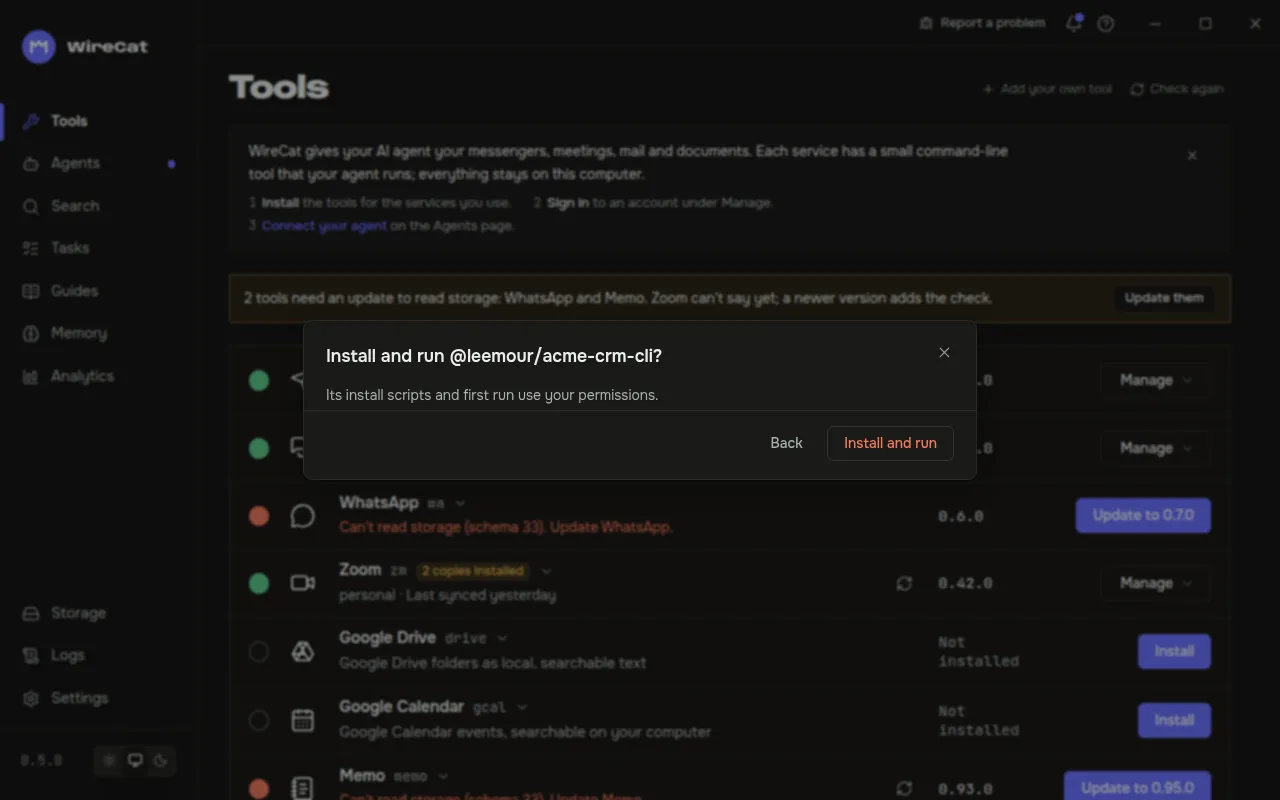
@scope/name? Its install scripts and first run use your permissions." Only Install and run installs the package. Back returns to the review. - After the install, WireCat checks that the program describes itself as the review showed. The tool is on the Tools page at once, with the Not verified badge. No restart is needed.
Only some packages work. The package must have a scope (@scope/name, not @wirecat/), be written in TypeScript on
cli-base, and ship its manifest contracts/wirecat.json: a file that
describes the tool's commands to WireCat. A program on your PATH or a package without a scope cannot be added. A maker
builds such a tool as Create your CLI shows.
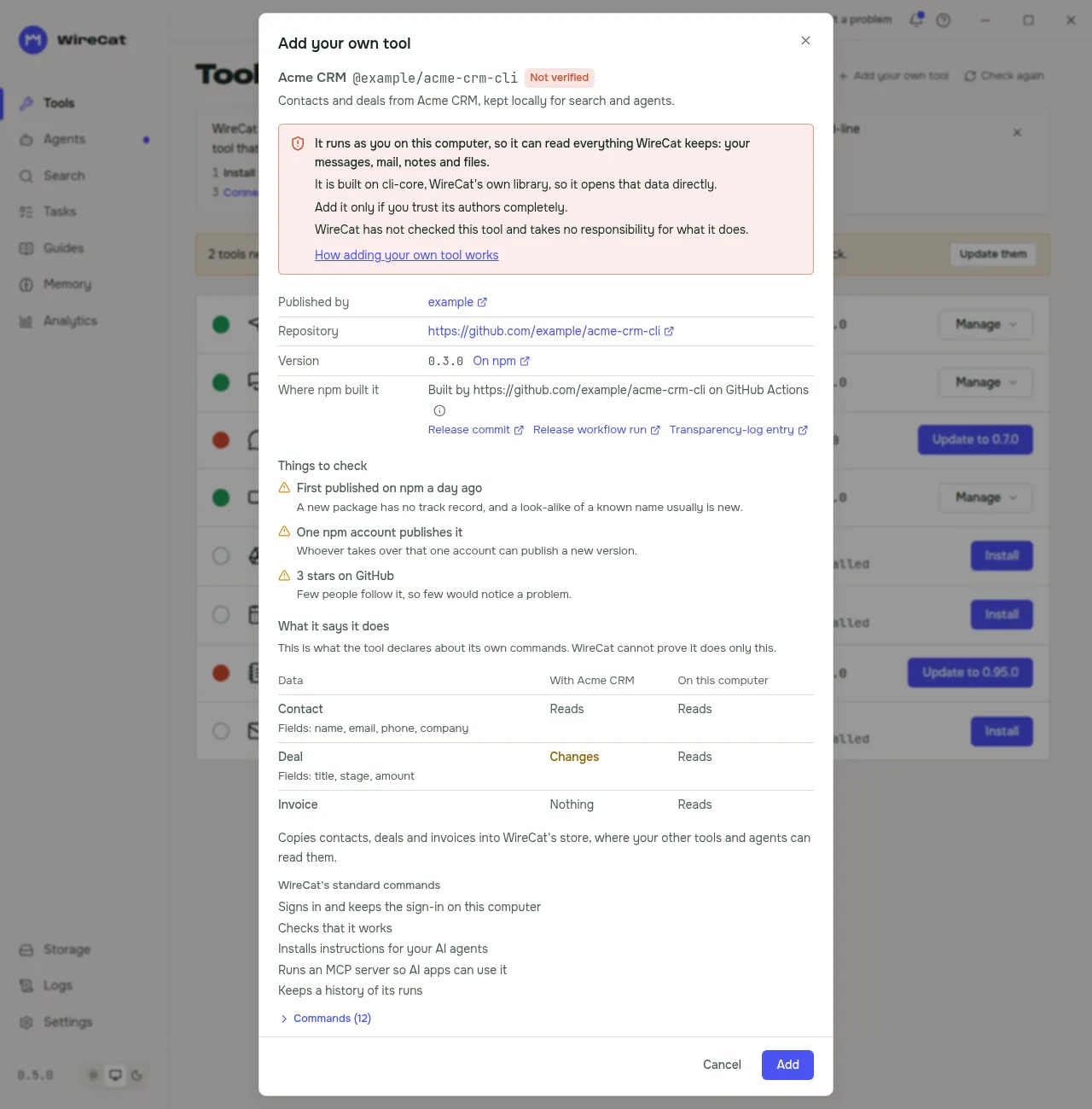
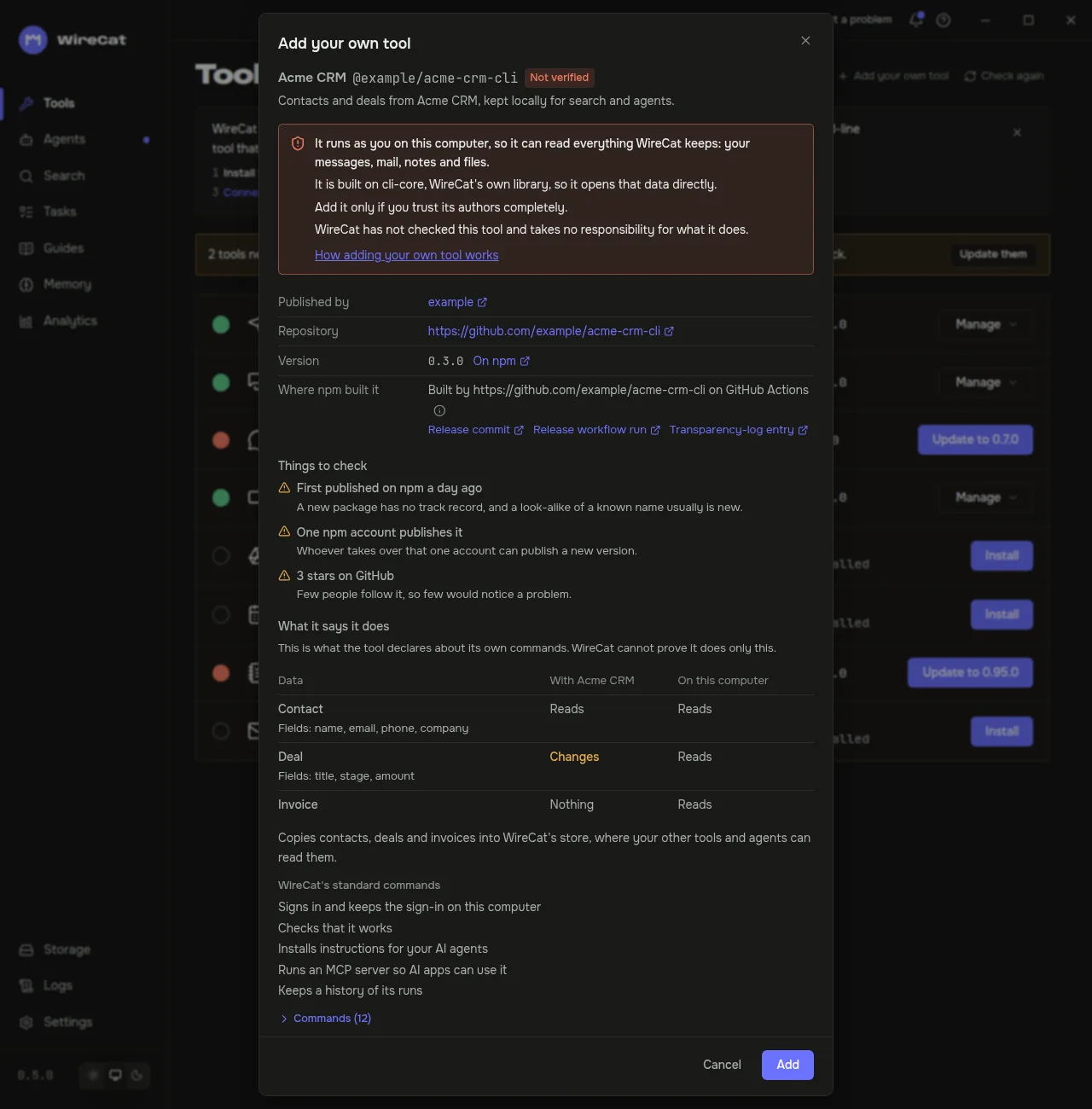
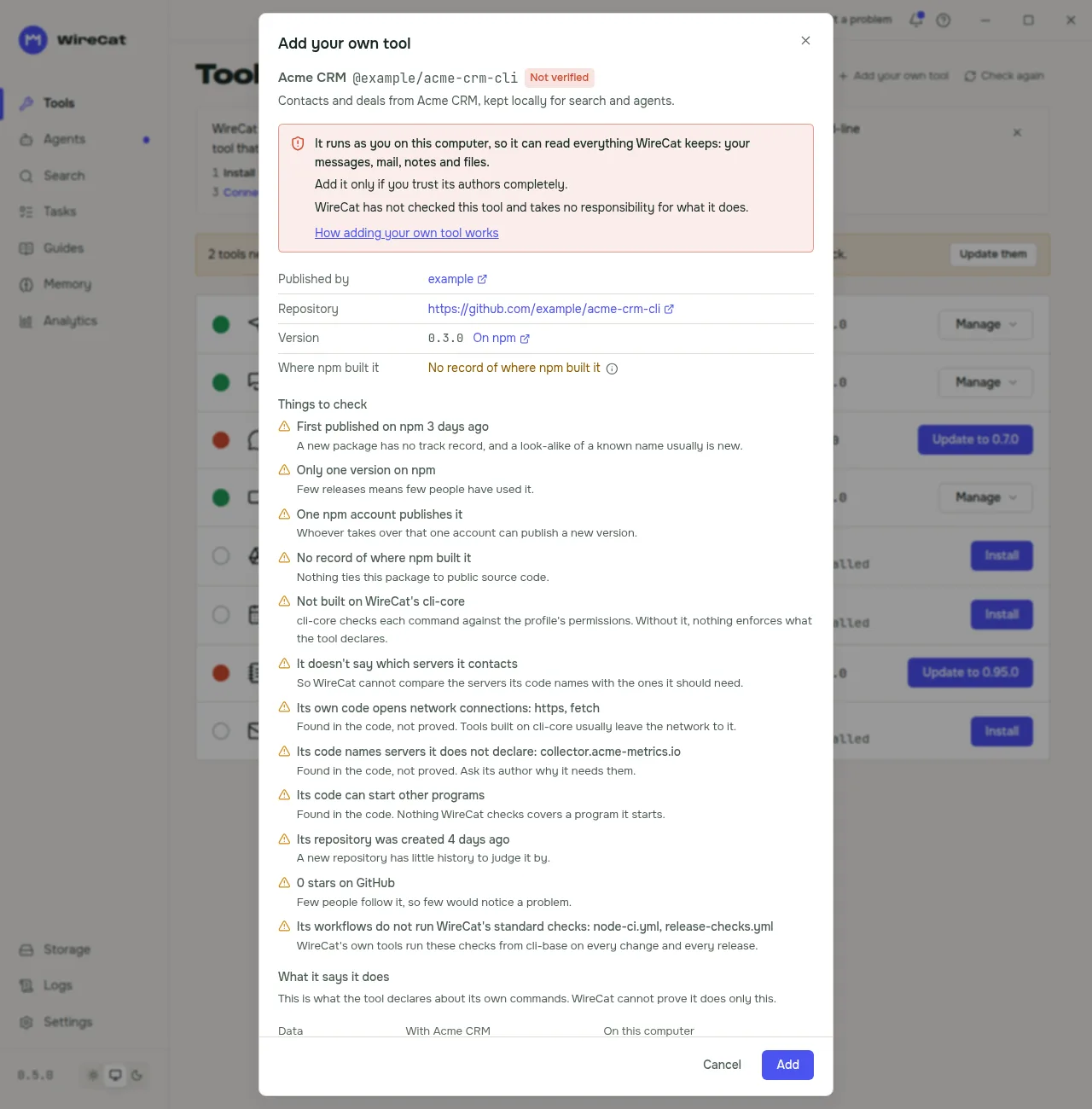
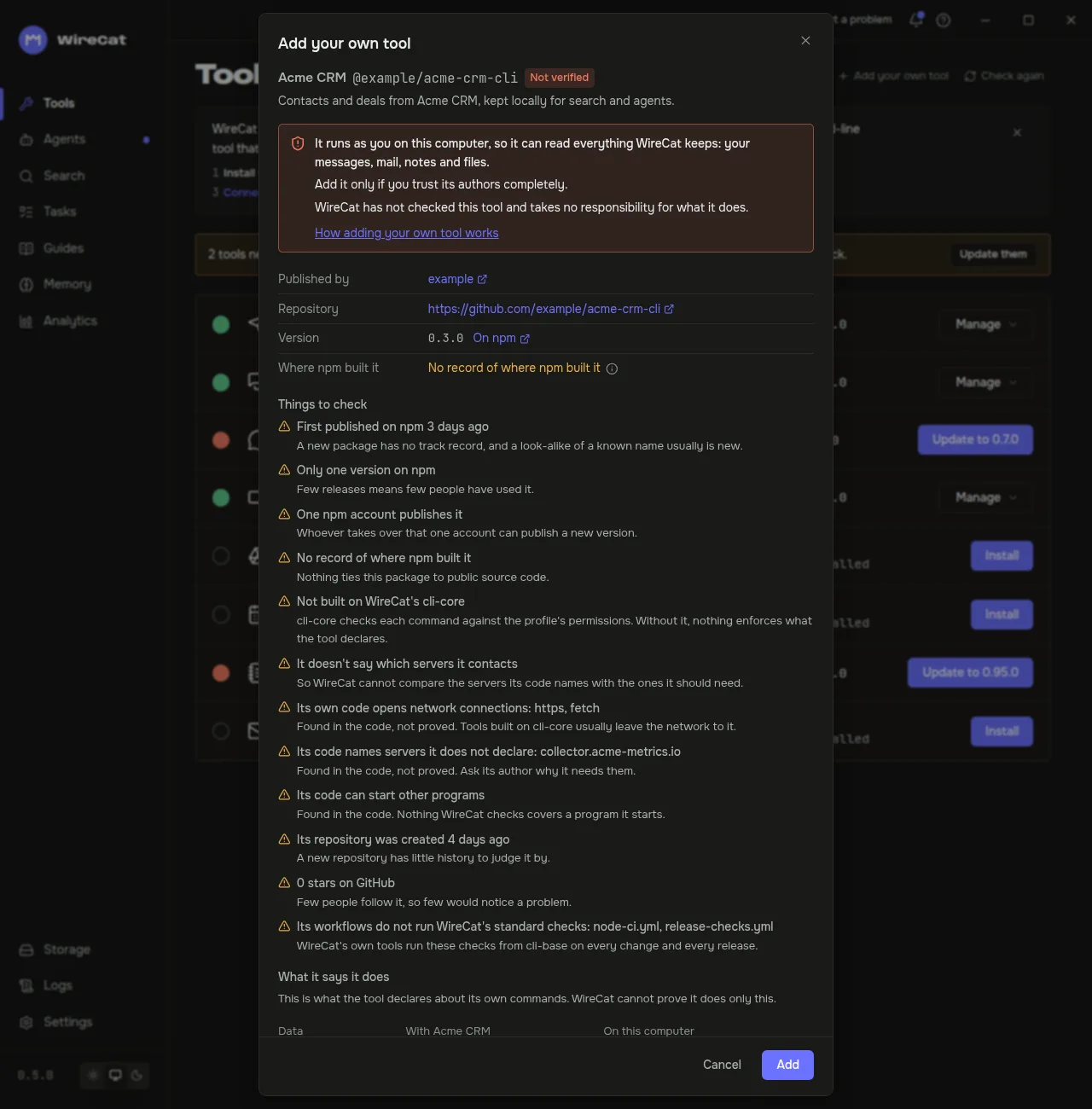
The review screen
Nothing is installed yet when it opens. From the top:
- Not verified, beside the tool's name.
- A red warning, true for every tool you add: it runs as you on this computer, so it can read everything WireCat keeps (your messages, mail, notes and files). For a tool built on cli-core, WireCat's own library, the warning adds that it opens that data directly. Add it only if you trust its authors completely.
- Published by, Repository, Version and Where npm built it. Each is a link that opens in your browser: the publisher's npm profile, the repository, the version's page (On npm), and, when npm recorded where it built the package, Release commit, Release workflow run and Transparency-log entry. "No record of where npm built it" means nothing ties the package to public source code.
- Things to check: each item with one sentence on why it matters. They come from npm (first published less than
30 days ago, few versions, one npm account publishes it, no record of where npm built it), from its GitHub
repository (created recently, no change for a long time, archived, few stars, workflows that do not run WireCat's
standard checks), from the WireCat libraries it uses or does not use, and from its code (it opens network
connections, names servers it does not declare, can start other programs, hides calls, or ships native
.nodeor.wasmfiles). When GitHub cannot be reached or is out of checks, the item says "Couldn't check its GitHub repository", and the other checks still apply. With nothing to show it says "Nothing stood out. That does not make it safe." - Servers it contacts: the servers the tool declares, "It says it contacts no servers", or "It does not say". A server you choose, such as your own mail server, is named too.
- What it says it does: a table of the data the tool works with (Contact, Deal…), with its fields where the tool names them. For each, With the service and On this computer: Reads, Changes or Saves, or Nothing. Then what its sync copies into WireCat's store, and WireCat's standard commands in plain words (signs in, checks that it works, installs instructions for your AI agents…). The exact commands are folded under Commands; click it to open the list.
What the screen means:
- Things to check are flags, not a verdict. None of them stops you from adding the tool, and an empty list does not make it safe. What WireCat reads in the package's code is "found in the code, not proved": the libraries the package bundles are skipped, and code can be written to hide from such a reading.
- "Where npm built it" is not a safety check. npm records which repository built the package. That shows where the code came from, not that it is safe.
- "What it says it does" is what the tool says about itself. WireCat cannot prove that a tool does only that.
- Installing runs its code. npm runs the package's install scripts with your permissions. That is why the AI check comes first, and why there are two confirmations.
Use it with your AI agent
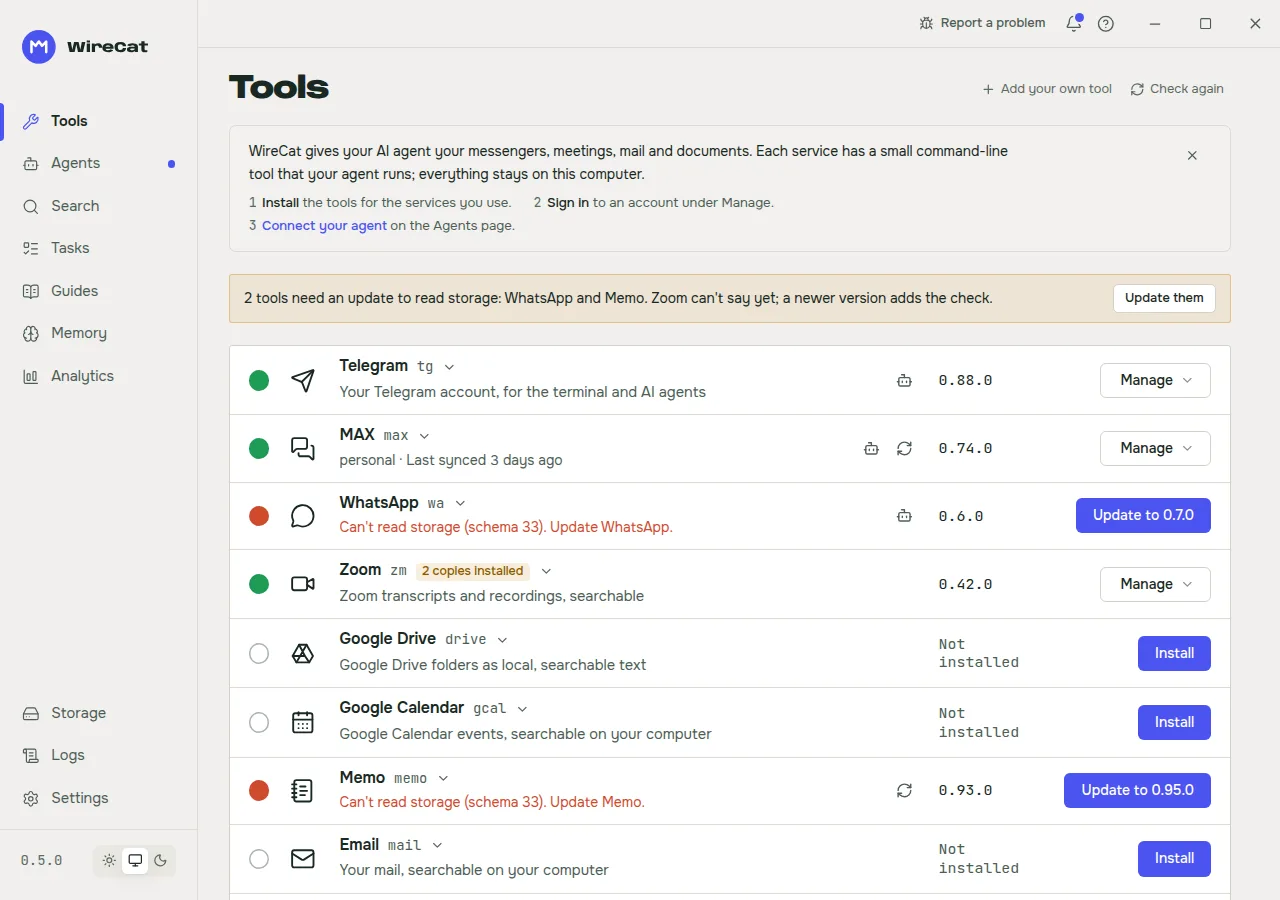
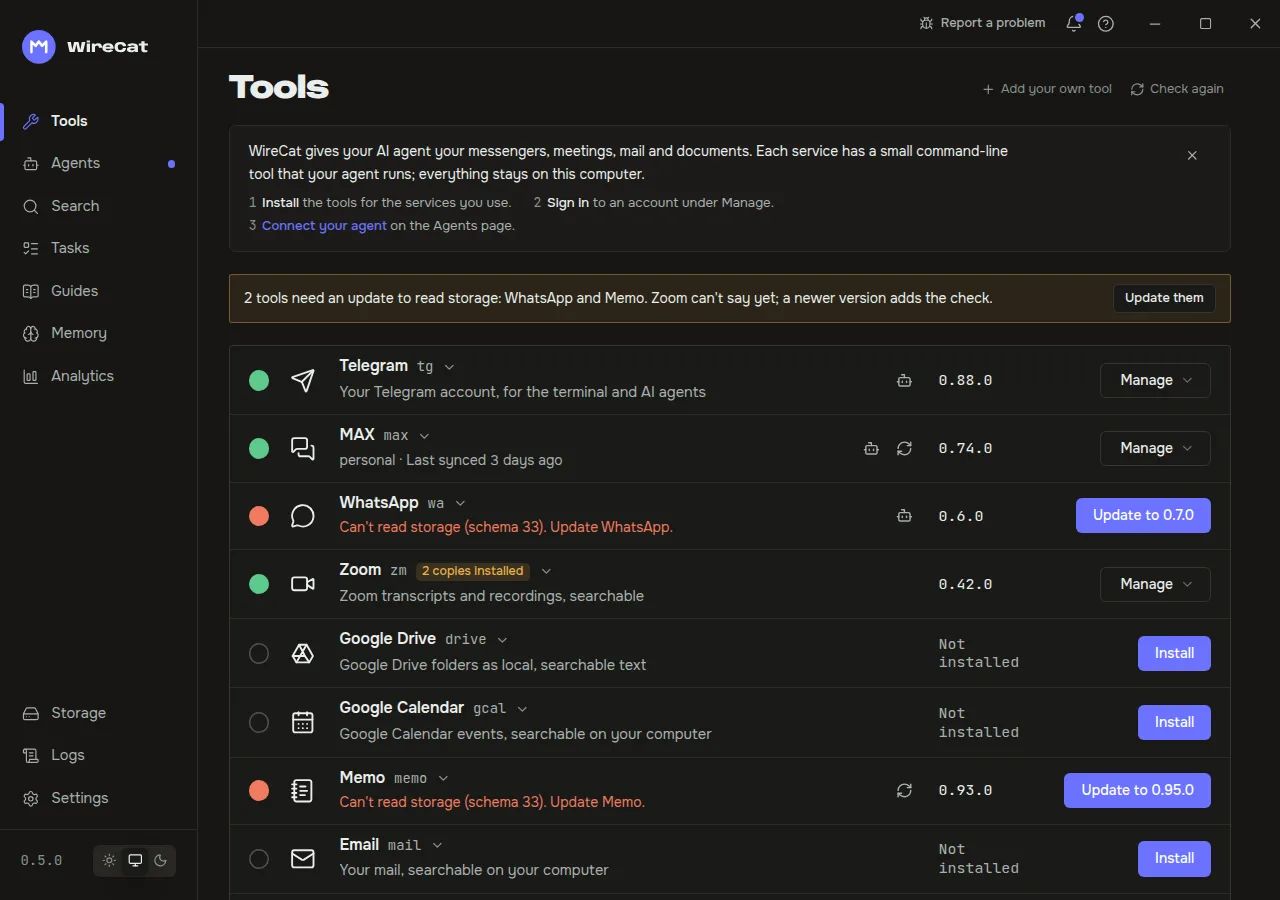
An added tool works like any other. Open Manage on its row to add an account, sign in, sync and run its health check. If it has instructions for AI agents or an MCP server, the Agents page gives them to your agents with Connect, as for a WireCat tool.
Update it
The tool's Update to button opens the review again for the new version, every time. It also lists what changed since the version you confirmed: the repository, where npm built it, the publishers, new commands, new write access, and new or changed parts. When anything changed, or the tool does not describe what it asks for, tick I accept these changes before you can go on. The AI check and the second question follow, as for a new tool.
Remove it
- Remove from WireCat, in the tool's details (click its name), deletes the tool's entry, and the tool leaves the Tools page at once. No restart is needed. When the program is installed, the question offers Uninstall it first; otherwise the program stays installed, and the Tools page says what stays on the computer.
- Uninstall removes the program. Uninstall and delete data also deletes the tool's own data folders: only the
folders named after its package (
@scope/name→scope-name). It never deletes the store your other tools share. A folder with that name that already existed before you added the tool is listed with "This folder existed before WireCat added the tool, so WireCat leaves it alone", and is never deleted.
Without the internet
Checking a package, adding it and updating it read npm, so they need the internet. Without it the dialog says "Couldn't reach npm". A tool you already added stays on the Tools page offline: WireCat keeps its entry on this computer and does not ask npm again at start. Whether the tool itself works offline depends on the tool and its service.
If it does not work
"The list of community tools is out of date"
The list of community tools that WireCat signs has run out, and the app could not fetch a new one. Until it does, community tools cannot be installed or updated. Installed ones keep working, and your own tools are not affected. Check your internet connection or proxy. The app tries again every day, and the notice goes away once a new list arrives.
WireCat refuses a tool you add
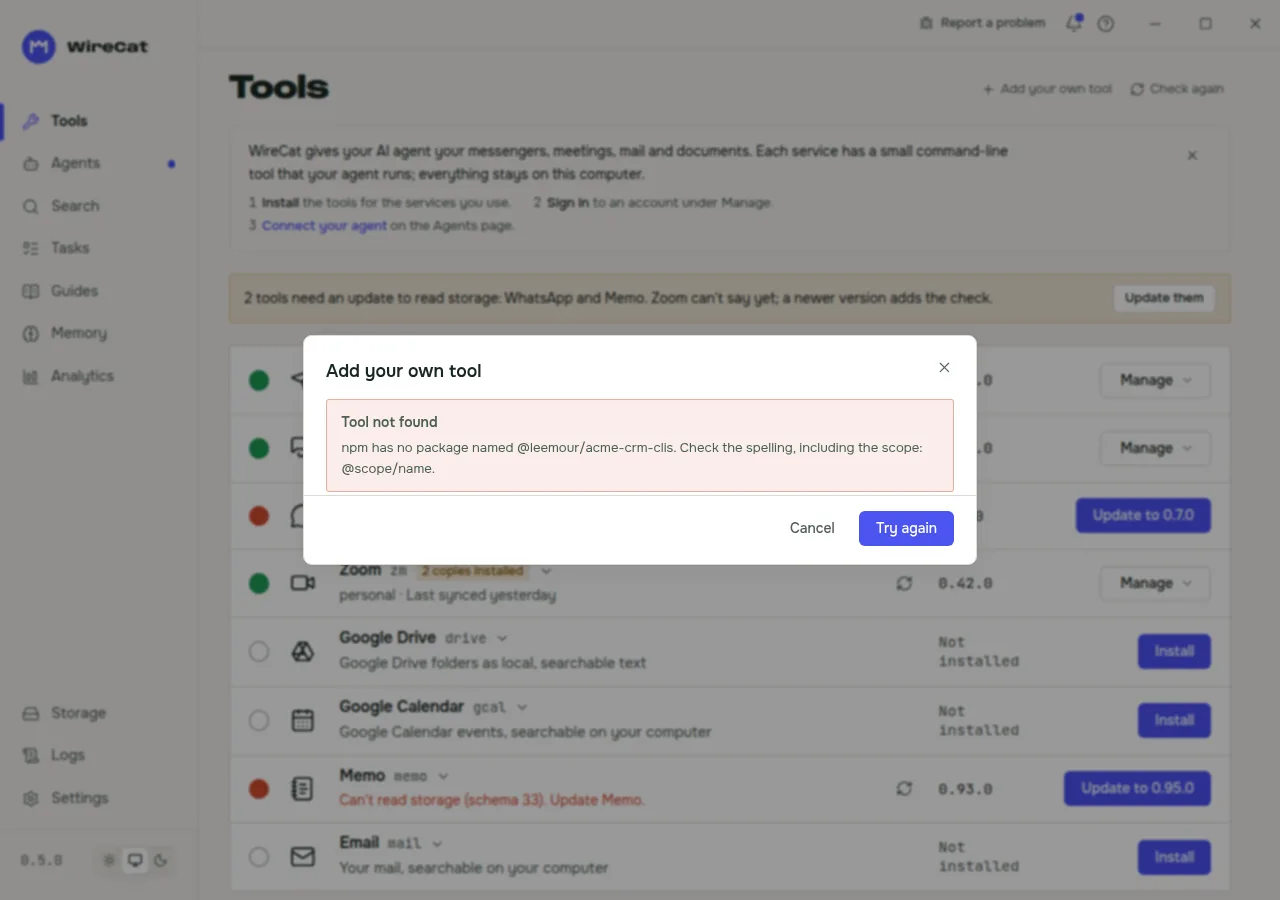
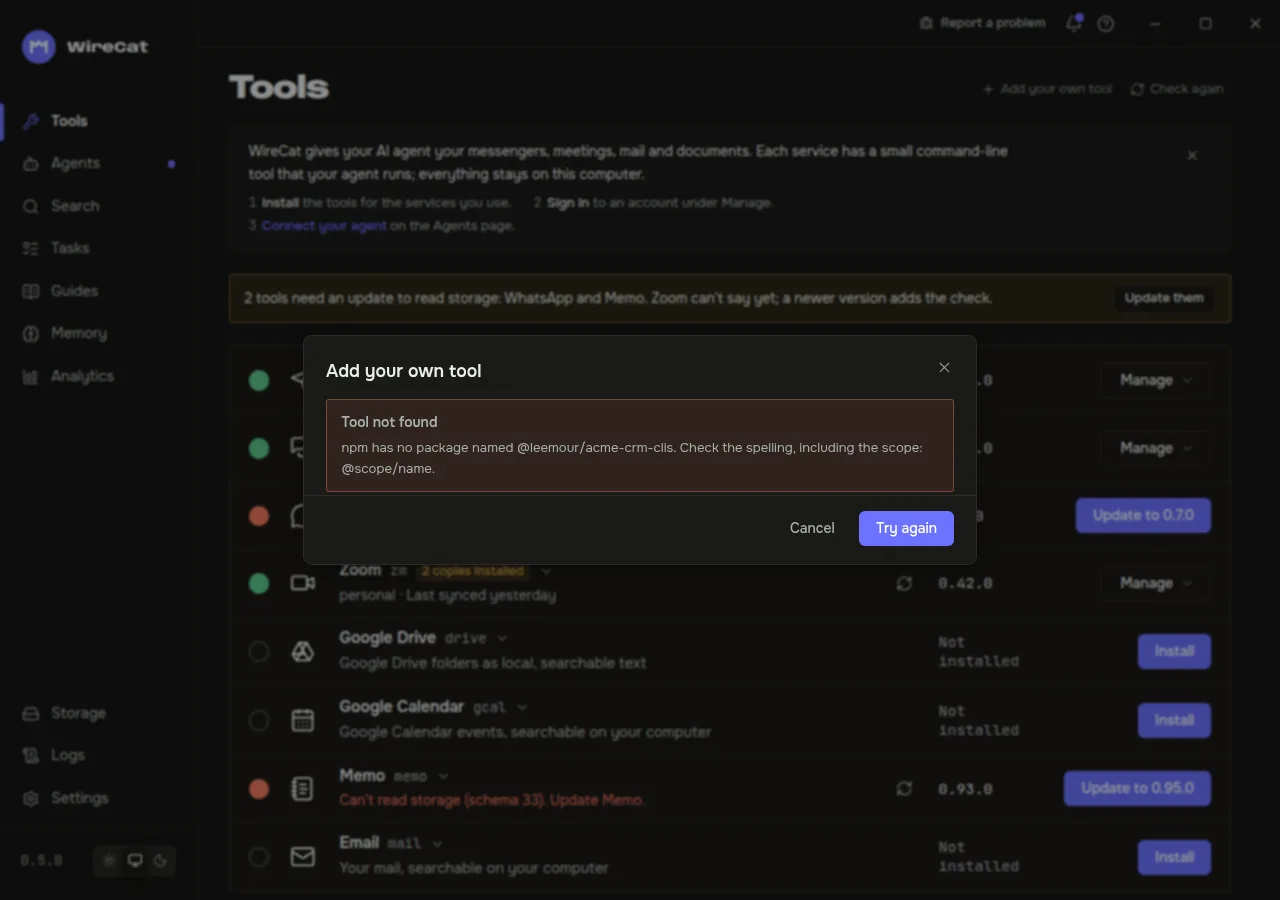
When you add your own tool, the dialog names the problem in a headline, such as Tool not found, then says what went wrong and what to do. Try again returns to the name field with the name kept and selected, so you can correct it. When npm could not be reached, the package is too large or something unexpected went wrong, Try again reads the same name again. Nothing is installed before the second question, except in the last two rows.
| The dialog says | What to do |
|---|---|
| Tool not found: npm has no package named … | Check the spelling, including the scope: @scope/name. |
| Only scoped package names work here, such as @scope/name. | Ask the tool's author for its full npm name. |
| This name belongs to WireCat's own tools. | WireCat's own tools are already on the Tools page. Install them there. |
| This tool does not describe itself to WireCat. | Paste its desktop object from the tool's documentation into the field below the message, and click Check with this object. Or ask its author to publish a version with a manifest. |
| What the tool tells WireCat has a problem in "…": … | The quotes name the part, then the rule it breaks. Ask the tool's author to fix it and publish a new version. |
| … already uses this tool's name, program or data folder. | Two tools cannot share them. Ask the tool's author to rename it. |
| …, on WireCat's community list, already uses this tool's name or folders. | This tool is now listed. Remove your own entry to use the listed one. |
| npm says it was built by …, but the package names …. | Do not add it. Tell the tool's author. |
| WireCat could not reach npm. | Check your internet connection or proxy, then try again. |
| The … is larger than WireCat reads. | Ask the tool's author to make the package smaller. |
| Something went wrong reading npm: … | Try again. If it happens again, report a problem. |
| WireCat could not show this tool: … | Ask the tool's author to fix it and publish a new version. |
| The package is installed, but WireCat did not add it. | The program does not match the review. Click Uninstall it. |
| bun installed this tool, and bun cannot be told which registry your own tools come from. | Shown when you update a tool you added that bun installed. Uninstall it, then add it again: WireCat installs it with npm. |
For tool authors
A tool WireCat Desktop can add is an npm package built on cli-base, WireCat's library for command-line tools, written in TypeScript. The quickest start is the template: Create your CLI makes a tool with everything below already in place. Make it addable in WireCat Desktop has the exact steps.
Start from the template:
npx @wirecat/cli-template new <name>-cli --command <word> --package <npm name> --owner <github owner>It gives a working tool with local storage, search, the skill for AI agents and an MCP server, and it passes every WireCat standards check from the start. Then you add the commands for your service.
What WireCat checks before it adds a tool:
- A scoped npm name of your own, such as
@scope/name. The@wirecatscope and the names WireCat keeps for its own tools cannot be used. - The manifest
contracts/wirecat.jsoninside the package: the commands, what each one reads and writes, and the commands Desktop runs to check, sign in, sync and connect the tool. It is generated from the built program, never typed by hand, and a check fails when it no longer matches. - A data folder named after the package:
@scope/namekeeps its data inscope-name. Uninstall and delete data deletes only that folder. - The same answer after the install. Desktop runs the installed program once and refuses the tool when it does not describe itself as the review showed.
What makes the review read well:
- Your own words for the short tagline, what signing in gives and asks for, and what a sync copies. The template writes a first version; rewrite it.
- The servers it contacts, declared in the manifest. Without them the review says "It does not say".
- A public repository and trusted publishing. Then npm records where it built each version, and the review links the release commit and the workflow run. Without that record the review flags "No record of where npm built it".
- WireCat's standard checks in your workflows, as the template has them. Workflows without them are flagged.
When the tool works for you and others, ask for it to be listed: List your tool in WireCat says what we review. A listed tool shows on wirecat.dev, and in WireCat Desktop with the Community badge.
Run WireCat on local models
Step by step, keep your messages, mail, notes and pictures away from cloud AI services. Set up a model on your computer, point each WireCat feature and your coding agent at it, and see what still goes out.
Search logs in WireCat Desktop
Find why a tool failed, how often it happens and which command, profile or error it involves, with filters, groups and the record of each run.