Contacts in WireCat Desktop
See who is who across Telegram, MAX, WhatsApp, mail, meetings and Bitrix24, join the accounts of one person, undo a wrong join and answer your agents' doubts.
The same person often writes to you from Telegram, WhatsApp and email, and sits in your CRM too. The Contacts page in WireCat Desktop shows each person once, with all their accounts. Use it to check who is who, to join two entries that are one person, and to undo a join that was wrong. Your agents read the same list, so a correct list gives them better answers about the people you talk to. The page needs Memo, which keeps the list; without it the page says so and offers Install Memo.
Contacts is marked beta: you see a β beside its name. The section is new and lightly tested.
How WireCat joins people
WireCat joins two accounts into one person by itself only when they share an email address, or a phone number that no one else has. Anything less certain waits on this page for you. Agents can also suggest that one person is really two, and you answer that here too. How people are joined explains the rules.
The list
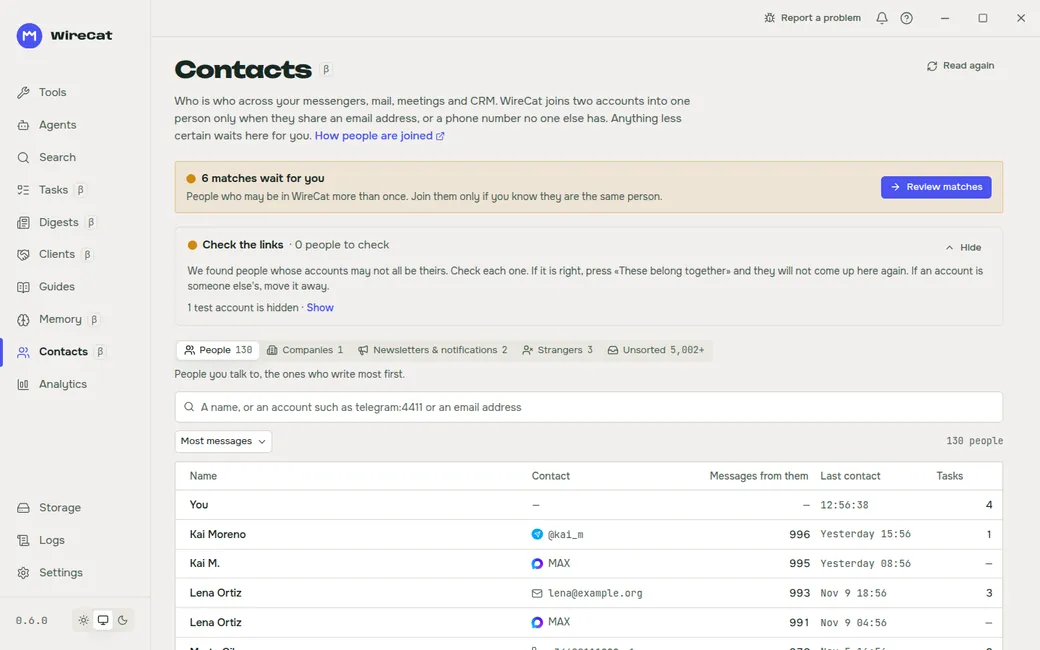
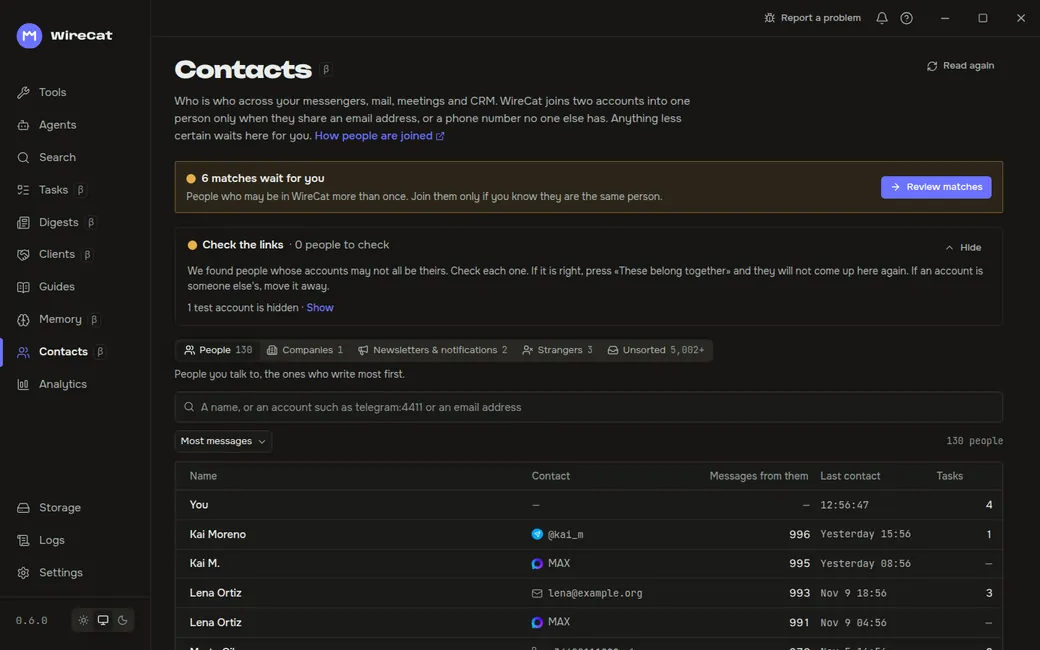
Tabs sort everyone into People, Companies, Newsletters & notifications, Strangers and Unsorted. Each tab shows its count. A count with a plus, such as "5,002+", is not exact yet.
The table shows Name, Contact, Messages from them, Last contact and Tasks, 50 rows a page. The pager below changes it to 25 or 100. A person with a phone and an email shows the first and "+1". A person with only a WhatsApp or MAX account shows that service. Bots are marked bot. Above the table you can search by name, phone or address, sort with Order (most messages, recent contact, name or most tasks), and keep only people with tasks or with a name.
Open a person
Click a name to open the person's card:
- Accounts: each account with its service, the profiles of yours it was seen in, and a bot or work mark. Unlink beside an account moves it off this person. It asks first.
- Move accounts to a new person: tick the accounts that belong to someone else and confirm. At least one account stays with this person. The dialog names the person the accounts leave, so WireCat never takes an account from someone else.
- Joined into this person: each join, with Undo. Undo the join names the person and lists every account that goes back.
- Tasks: the tasks assigned to this person. Each opens on the Tasks page.
Review matches
When WireCat finds people who may be the same person, a band at the top says how many matches wait for you. Click Review matches. The screen Possible duplicates shows one card per group:
- The card lists what matched, with the value: the name, company, domain, phone or email. A phone number that no account shows reads "number hidden: accounts keep only its fingerprint".
- Same person joins them. Tick some of them first to join only those, and the button reads Join with the number.
- Not the same asks why, then Keep them apart. WireCat stops suggesting this match.
- Details opens Match details: the people side by side, with where each one comes from, their phone, email and messengers, company, deals, tasks and latest messages. Merge joins two, Merge all joins every one.
All contacts goes back to the list.
Shared mailboxes
Several people can write from one address, such as info@ or sales@ of a company. Such a card is marked shared
mailbox. Company mailbox gives the address to a company, which you choose or type. WireCat then stops suggesting
a join for the people on it.
Answer your agents
Agents can ask to split one person in two. A band says how many people they ask to split. Each card says what the agent thinks and why. Split moves the accounts off. Keep together asks why they belong together; the agent reads your answer.
Check the links lists people whose accounts may not all be theirs, for example accounts with different names. Each person is a card with Open, Split and These belong together. When everything on a card is right, These belong together settles it, and the person does not come up again. Hide folds the list.
Next
Ask your agent about a person: it now sees all their accounts as one. People in your messages shows the requests to try.
Install and set up WireCat Desktop
The app for macOS, Windows and Linux that installs, updates and checks the WireCat tools, connects them to your AI agents and signs you in, with no terminal. A walkthrough of every screen.
Clients in WireCat Desktop
Your CRM deals and leads as a table or as a board by stage. Move a deal to another stage, map each CRM's stages onto yours, and choose whose deals are copied.